
For most small businesses, the biggest security risk isn’t a sophisticated hacker. It’s a reused, weak or shared password. One leaked password can open your email, and your email can reset almost everything else: your bank, payment processor, website, social media and payroll. Stolen and weak credentials are consistently among the most common ways attackers get into organizations.
A password manager solves this. It creates a strong, unique password for every account, remembers them all, fills them in for you, and lets you share logins with staff safely. You only remember one strong password. CISA, the US Cybersecurity and Infrastructure Security Agency, recommends using one, and several excellent options are free.
Quick picks
Table of Contents
| If you want | Choose |
|---|---|
| The best free password manager for most small businesses, including two-person sharing | Bitwarden |
| A privacy-focused free option with email aliases | Proton Pass |
| Zero setup on an all-Apple business | Apple Passwords |
| Zero setup on Chrome and Android | Google Password Manager |
| Full control, stored only on your own devices | KeePassXC |
How a password manager works
- One vault, one main password. Your logins are stored in an encrypted vault, unlocked with a strong main password (and ideally a second factor).
- Encrypted before it leaves your device. Reputable managers use "zero-knowledge" encryption, so even the company can’t read your vault.
- Generates strong passwords for every new account.
- Fills logins automatically in your browser and apps, which also protects you from fake websites: the manager won’t fill your bank password into a look-alike phishing page.
- Syncs across devices, so your logins are on your laptop and phone.
- Shares logins securely with staff, without sending passwords by text or email.
How we evaluated
We compared what’s included free (passwords, devices, sharing), security design, ease of use for non-technical owners, apps and browser support, sharing with staff, and the cost to upgrade for a team.
The best free password managers, reviewed
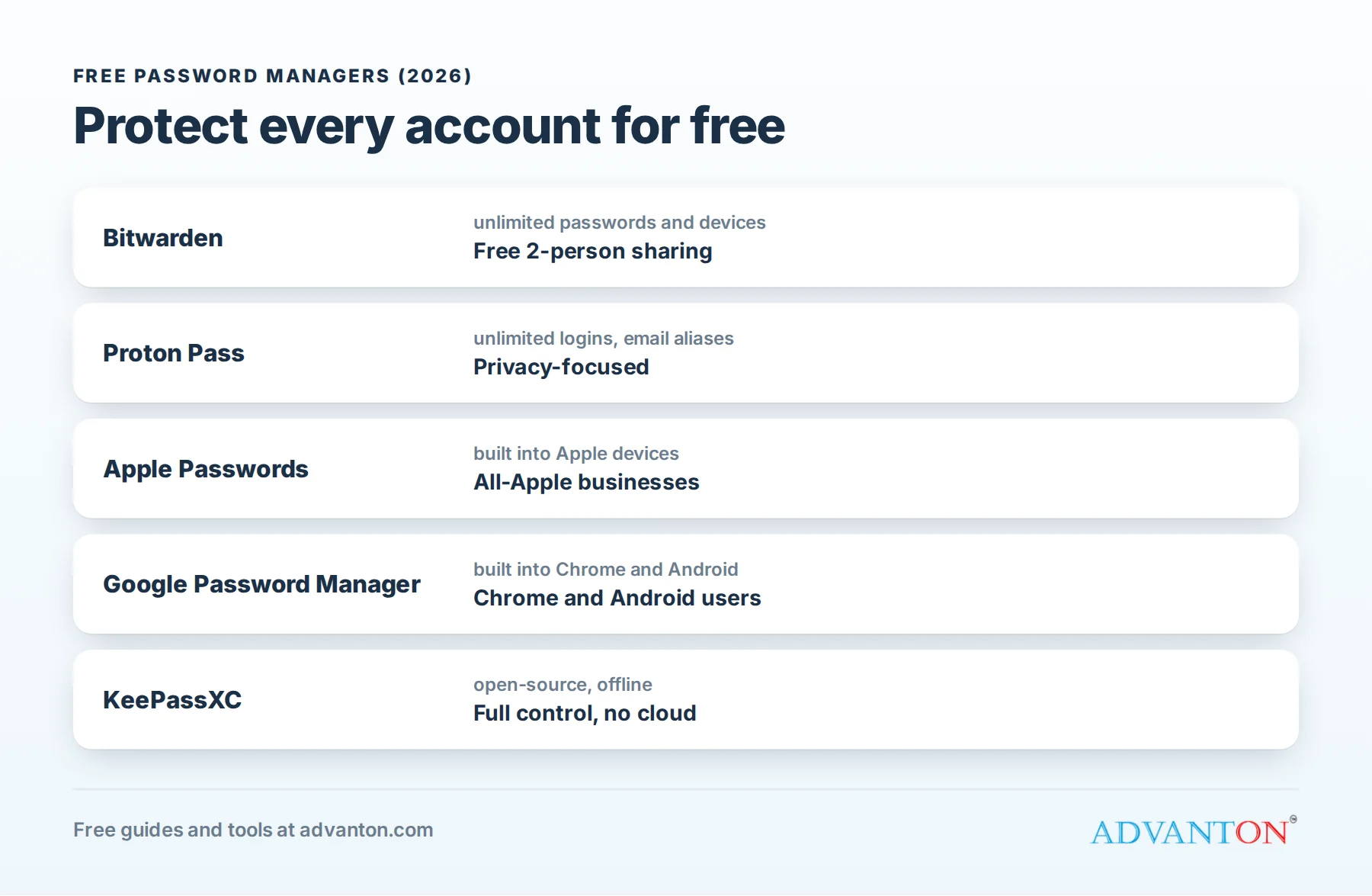
Bitwarden: best free choice for most businesses
What’s free: unlimited passwords on unlimited devices, apps for every major platform and browser, a password generator, and a free two-person organization for securely sharing logins between two people, such as an owner and a partner or office manager.
Best for: most small businesses, especially two-person teams.
Why we like it: it’s open-source and independently audited, works on Windows, Mac, iPhone, Android and Linux, and has affordable paid plans when you need more people.
Catches: sharing beyond two people, and some extras, require a paid plan. The interface is practical rather than flashy.
Proton Pass: privacy-focused, with email aliases
What’s free: unlimited logins on unlimited devices, plus a limited number of "hide-my-email" aliases, which let you sign up for services without revealing your real address.
Best for: privacy-conscious owners, and anyone already using Proton Mail.
Catches: team sharing and more aliases require paid plans.
Apple Passwords: built into Apple devices
What’s free: Apple’s Passwords app, built into iPhone, iPad and Mac, stores passwords and passkeys, syncs through iCloud, and warns you about weak, reused or leaked passwords.
Best for: businesses where everyone uses Apple devices.
Catches: it works best inside Apple’s world; Windows users need iCloud for Windows, and Android support is limited. Team sharing is basic compared with business password managers.
Google Password Manager: built into Chrome and Android
What’s free: stores and fills passwords in Chrome and on Android, with a Password Checkup that flags compromised, weak and reused passwords.
Best for: businesses that work mainly in Chrome and on Android phones.
Catches: it’s tied to a Google account and Chrome, and it lacks proper business sharing and admin controls.
KeePassXC: full control, no cloud
What’s free: everything. KeePassXC is free, open-source software that stores your vault in an encrypted file on your own device.
Best for: technically comfortable owners who don’t want their vault on anyone else’s servers.
Catches: syncing between devices and sharing with others is up to you (for example, through a file service), so it’s less convenient for teams.
Comparison at a glance
| Bitwarden | Proton Pass | Apple Passwords | Google Password Manager | KeePassXC | |
|---|---|---|---|---|---|
| Free passwords and devices | Unlimited | Unlimited | Unlimited (Apple devices) | Unlimited (Chrome, Android) | Unlimited |
| Works on Windows, Mac, iPhone and Android | Yes | Yes | Limited outside Apple | Limited outside Chrome and Android | Yes, with extra apps |
| Free sharing | 2-person organization | Paid | Basic | Basic | Manual |
| Open-source | Yes | Yes | No | No | Yes |
| Best for | Most small businesses | Privacy | All-Apple teams | Chrome and Android teams | Full control |
Free plans change, so check each provider’s current terms.
What about paid business password managers?
As your team grows, a paid business plan adds shared vaults, admin controls, access reports and easy offboarding. Common choices include Bitwarden Teams, 1Password Business, Keeper and Dashlane. 1Password doesn’t offer a permanent free plan, but it’s popular with small teams for its polish. Expect to pay a few dollars per user per month.
Passkeys: the future of logging in
More websites now offer passkeys, a replacement for passwords backed by the FIDO Alliance and supported by Apple, Google and Microsoft. Instead of typing a password, you confirm with your phone, fingerprint or face. Passkeys can’t be reused or phished like passwords. Most password managers in this guide can store passkeys, so turn them on for important accounts as they become available.
Which should you choose?
- Solo owner on mixed devices: Bitwarden.
- Owner plus one partner or manager: Bitwarden’s free two-person organization.
- Everyone uses Apple devices: Apple Passwords, or Bitwarden if you’ll share with non-Apple users.
- Three or more people sharing logins: a paid business plan, such as Bitwarden Teams or 1Password Business.
- No cloud storage allowed: KeePassXC.
Setups for different businesses
- Retail and restaurants: shared logins for point-of-sale admin, delivery apps and supplier portals belong in a shared vault that managers can access, not on a note by the register.
- Contractors and field teams: crews work from phones, so install the mobile app and turn on autofill; share only the logins each crew needs, such as supplier accounts.
- Offices and professional services: separate vaults for administration, client systems and finance, with access limited to the people who need each one.
- Regulated businesses (healthcare, finance, legal): check that your password manager and policies meet your industry’s requirements, and choose a business plan with access reports.
Set it up in one hour
- Choose one password manager for the whole business.
- Create a strong main password. A passphrase of four or more random words (for example, "copper-lantern-violet-harbor") is long, strong and memorable. Never reuse it anywhere.
- Turn on two-factor authentication for the password manager itself, using an authenticator app.
- Save your recovery or emergency kit somewhere safe and offline. With zero-knowledge encryption, the company can’t reset a forgotten main password.
- Import passwords saved in your browsers, then delete them from the browsers.
- Fix your most important accounts first, replacing weak or reused passwords with generated ones (see the priority list below).
- Install the apps on your phone and the extension in your browsers.
Secure these accounts first
- Your email, which can reset everything else.
- Banking and payment processors (Stripe, Square, PayPal).
- Your domain registrar and website hosting, so nobody can hijack your website.
- Accounting and payroll software.
- Social media and Google Business Profile.
- Supplier and marketplace accounts that hold your payment details.
For each one: a unique generated password, two-factor authentication (an authenticator app or passkey is safer than text messages), and up-to-date recovery details.
Two-factor options, from weakest to strongest
| Method | How it works | Strength |
|---|---|---|
| Text message codes | A code is sent to your phone by SMS | Better than nothing, but codes can be intercepted or your number hijacked |
| Authenticator app | An app (such as Google Authenticator, Microsoft Authenticator or one built into your password manager) shows a changing code | Strong, and free |
| Security key | A small physical key you plug in or tap | Very strong; resists phishing |
| Passkey | You confirm with your phone, fingerprint or face | Very strong; resists phishing, and nothing to type |
Use an authenticator app or passkey wherever you can, especially for email, banking and your domain registrar.
How to spot phishing
Most passwords are stolen by tricking people, not by breaking encryption. Warning signs:
- Urgency or fear: "Your account will be closed today", "Unpaid invoice attached".
- Requests to change payment details, especially from a "supplier" or "your boss".
- Links to login pages in emails or texts. Go to the site directly instead.
- Slightly wrong addresses, such as paypa1.com or a strange sender domain.
- Your password manager doesn’t offer to fill the login, a strong sign the site isn’t genuine.
When in doubt, call the person or company using a number you already know.
Sharing logins with staff safely
- Share through the password manager, never by text, email or spreadsheet.
- Give each person their own account where services allow it, rather than sharing one login.
- Share only what each person needs.
- Use shared mailboxes (such as info@) rather than sharing your personal email password.
When someone leaves: an offboarding checklist
- Remove them from your password manager organization.
- Change passwords for any shared accounts they could access.
- Remove their own accounts from your email, payment, accounting and social media tools.
- Transfer ownership of anything they created, such as social media pages or files.
- Collect company devices, or remotely sign them out.
A one-page password policy for your team
Copy and adapt this for your staff:
- Use the company password manager for every work account.
- Never reuse passwords, and never share them by text, email or spreadsheet.
- Turn on two-factor login wherever it’s offered, using an authenticator app or passkey.
- Lock your devices with a PIN, fingerprint or face, and keep them updated.
- Report suspicious emails and messages immediately, and never enter a password from a link you weren’t expecting.
- Tell us at once if you think a password or device has been compromised. You won’t be in trouble for reporting it.
Plan for the unexpected
What happens if the owner is ill or unavailable? Decide in advance who can access essential accounts, and how. Some password managers offer emergency access, which lets a trusted person request access to your vault after a waiting period. Otherwise, keep sealed instructions with your business records.
Common mistakes
- A weak or reused main password.
- No two-factor login on the password manager or email.
- Losing the recovery kit, then being locked out.
- Keeping passwords in a spreadsheet "for the team".
- Forgetting offboarding when staff leave.
Frequently asked questions
Is it safe to keep all my passwords in one place?
With a reputable password manager, yes. Your vault is encrypted with your main password, and using unique, strong passwords everywhere is far safer than reusing a few you can remember. Protect the vault with a strong passphrase and two-factor authentication.
What if the password manager company is hacked?
Zero-knowledge encryption means stolen vault data is unreadable without your main password. That’s why a long, unique main password matters so much.
Are browser password managers good enough?
For one person on one platform, they’re much better than reusing passwords. For a business, a dedicated password manager adds cross-platform access and safe sharing.
Do I still need two-factor authentication?
Yes. A password manager protects your passwords; two-factor authentication protects your accounts even if a password leaks.
Should I use the same password manager for personal and business accounts?
It’s simplest to use one app with separate vaults or folders for personal and business logins. If staff will share business logins, keep business accounts in a shared business vault so they can be handed over cleanly.
Can I switch password managers later?
Yes. Most password managers can export and import vaults. Export carefully, import into the new manager, then delete the exported file securely, because it isn’t encrypted.
How often should I change my passwords?
Current guidance favors long, unique passwords over frequent forced changes. Change a password when there’s a reason: a breach notice, a staff member leaving, or a warning from your password manager’s security check.
Keep learning
Sources
- CISA, Use strong passwords
- Federal Trade Commission, Cybersecurity for small business
- Bitwarden, Pricing
- Proton Pass, Pricing
- FIDO Alliance, Passkeys
Last reviewed October 26, 2026. Startup costs are estimates; check local prices, licensing and tax rules before you commit money.


Leave a Reply