
When a small team runs on memory, group texts and sticky notes, things slip: a client request gets missed, two people do the same task, or nobody’s sure what’s due this week. A shared project management tool fixes that by putting every task, owner, deadline and file in one place that everyone can see.
You don’t need to pay for one. Several excellent tools have free plans that suit small teams, but free plans have changed a lot recently, and the best choice depends on how many people you have and how your work flows. This guide reviews the leading free options in 2026, explains their limits honestly, and helps you set one up in an afternoon.
Quick picks
Table of Contents
| If you want | Choose |
|---|---|
| The simplest visual boards for a small team | Trello |
| The most features free, for a team that may grow | ClickUp |
| A clean, structured task list for one or two people | Asana |
| Notes, documents and simple task lists in one place | Notion |
| Software, IT or technical work | Jira |
| Colorful, spreadsheet-like boards for two people | monday.com |
Signs your team has outgrown texts and spreadsheets
- Customers chase you for updates you thought someone else had sent.
- Two people did the same task, or nobody did it.
- New team members can’t find how things are done.
- You can’t answer "what’s due this week?" without asking around.
- Work disappears when someone is sick or on vacation.
If two or more of these sound familiar, a shared tool will pay for itself in saved time, even on a free plan.
How we evaluated
We compared free plan limits (people, boards, storage), ease of use for non-technical teams, views (boards, lists, calendars, timelines), mobile apps, integrations with email, calendars and file storage, and the cost of upgrading.
Boards, lists or timelines: which view suits your work?
- Boards (kanban): cards move across columns such as To do, Doing and Done. Ideal for simple, repeating work: client jobs, content, orders.
- Lists: tasks grouped by project, with due dates and owners. Ideal for projects with many small steps.
- Calendars: tasks shown by due date. Ideal for scheduling and deadlines.
- Timelines (Gantt charts): tasks as bars over time, showing dependencies. Ideal for longer projects such as renovations, launches or events. Timelines are often a paid feature.
The best free project management tools, reviewed
Trello: simplest for small teams
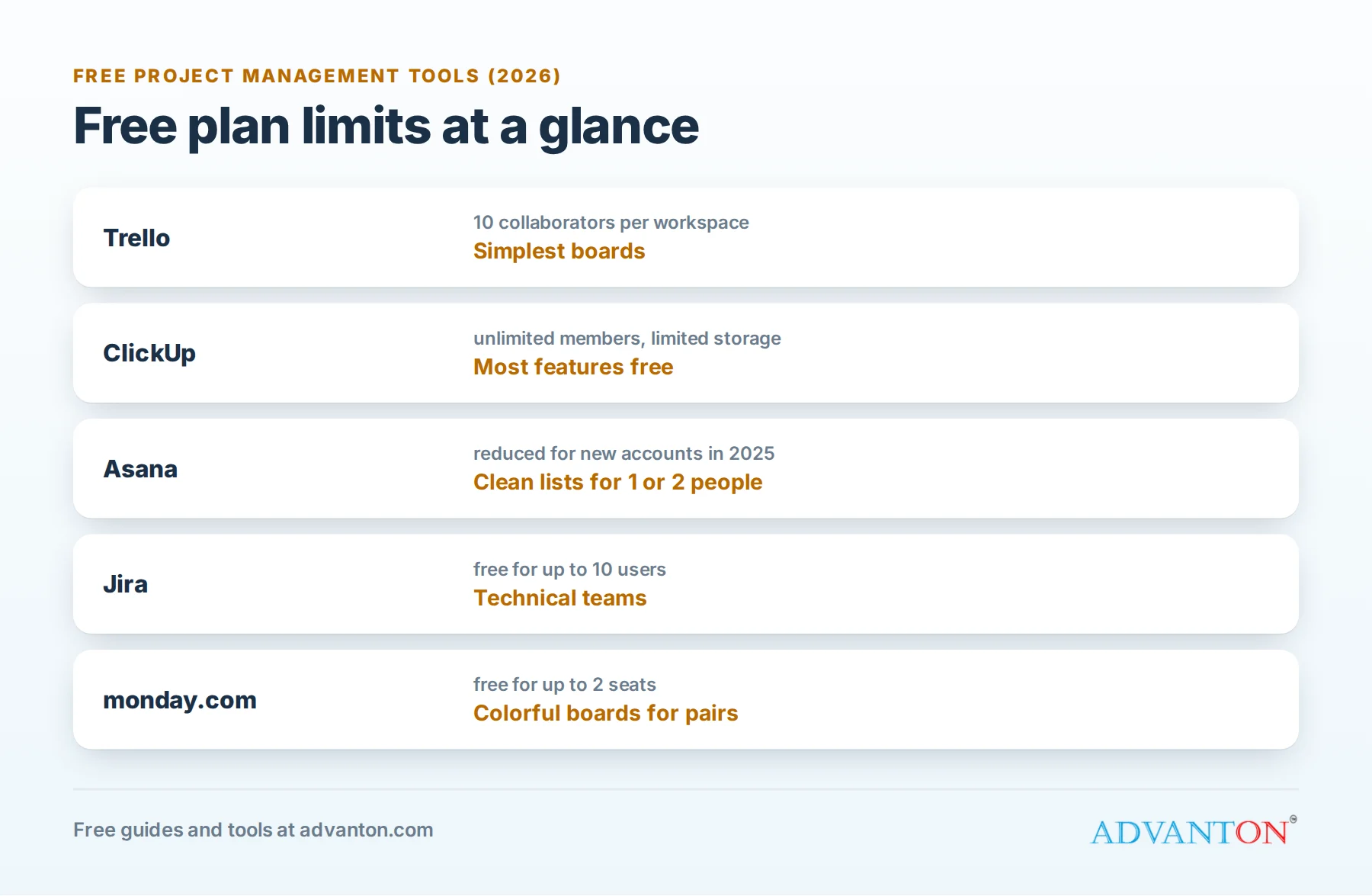
What’s free: unlimited cards, up to 10 boards per workspace and up to 10 collaborators per workspace, with checklists, due dates, attachments and basic automation.
Best for: small teams that want something everyone understands in five minutes, such as a cleaning company tracking jobs or a café planning events.
Catches: the 10-collaborator limit means growing teams must upgrade, and calendar and timeline views are paid features.
ClickUp: most features for free
What’s free: ClickUp’s Free Forever plan allows unlimited members and unlimited tasks, with list, board and calendar views, docs and basic time tracking, but with a small storage limit and caps on some advanced features.
Best for: teams that want a lot of capability without paying, and expect to grow.
Catches: the sheer number of options can overwhelm small teams. Keep your setup simple at first.
Asana: clean and structured
What’s free: Asana’s free plan offers lists, boards and calendars with a polished interface. According to comparisons published in 2026, Asana reduced its free plan to two users for new accounts in late 2025, so check the current limit when you sign up.
Best for: solo owners or pairs who value a clean interface and plan to pay as they grow.
Catches: the free plan now suits very small teams only, and advanced features such as timelines and automation are paid.
Notion: notes and tasks together
What’s free: Notion’s free plan suits individuals well, with pages, documents, databases and simple task boards in one workspace. Team use on the free plan is more limited.
Best for: owners who want their procedures, notes, client information and task lists in one flexible place.
Catches: Notion is a blank canvas: powerful, but you must design your own system. Collaboration limits push teams toward paid plans.
Jira: built for technical teams
What’s free: Jira’s free plan supports up to 10 users, with boards, backlogs and reporting designed for software and IT work.
Best for: small software, web or IT teams.
Catches: the terminology and setup are overkill for most non-technical businesses.
monday.com: colorful boards for two
What’s free: monday.com’s free plan covers up to two seats and a small number of boards, with its distinctive colorful, spreadsheet-style layout.
Best for: pairs who like visual, table-style tracking.
Catches: the free plan is small, and paid plans have minimum seat counts.
Comparison at a glance
| Trello | ClickUp | Asana | Notion | Jira | monday.com | |
|---|---|---|---|---|---|---|
| Free users | Up to 10 per workspace | Unlimited | Reduced for new accounts | Best for individuals | Up to 10 | Up to 2 |
| Boards | Yes | Yes | Yes | Yes | Yes | Yes |
| Calendar view | Paid | Yes | Yes | Yes | Limited | Limited |
| Timeline (Gantt) | Paid | Limited | Paid | Limited | Yes (basic) | Paid |
| Ease for beginners | Very high | Medium | High | Medium | Low | High |
Free plans change often, so check each tool’s current terms before your team commits.
Which should you choose?
- One person organizing their own work: Notion or Asana.
- Two or three people with simple, repeating work: Trello.
- Four to ten people: Trello if you want simplicity, ClickUp if you want more features free.
- More than ten people on a free plan: ClickUp.
- A software or IT team: Jira.
- You already pay for Microsoft 365 or Google Workspace: try Microsoft Planner or Google’s built-in task lists first; they may be all you need.
Setups for different businesses
- Contractors and trades: one card or task per job, with the address, photos, materials checklist and crew. A "Waiting" column for permits, parts and inspections keeps jobs moving.
- Agencies and freelancers: one project per client, with deliverables as tasks, client feedback as comments, and a "Client review" column.
- Retail and e-commerce: boards for product launches, restocking, promotions and seasonal displays.
- Restaurants and cafés: checklists for opening and closing, maintenance requests, menu changes and event planning.
- Professional services: a list per client matter, with deadlines, documents and next actions.
A starter board to copy
Here’s a simple board that works for most service businesses:
| Column | What goes here |
|---|---|
| Inbox | New requests, ideas and to-dos, not yet sorted |
| This week | Tasks you’ve committed to this week, each with one owner and a due date |
| Doing | What people are working on right now (limit it to a few per person) |
| Waiting | Tasks blocked on a customer, supplier or decision, with a note on what you’re waiting for |
| Done | Finished work, cleared out monthly |
Use labels for clients or types of work, and checklists for repeatable processes such as onboarding a new customer.
A worked example: a four-person cleaning company
Here’s how a small cleaning business might run on Trello’s free plan:
- One board called "Jobs", with columns: Requested, Scheduled this week, In progress, Waiting on customer, Done.
- One card per job, named with the client and address, for example "Miller, 14 Oak Lane: deep clean".
- Labels for job type (regular, deep clean, move-out) and for the crew assigned.
- A checklist template on every card: confirm access instructions, supplies packed, before photos, after photos, invoice sent, review requested.
- Due dates for each visit, which appear on team members’ phones as reminders.
- A second board called "Business" for everything else: hiring, marketing, supplies and paperwork.
The owner checks the Requested column each morning, the team moves cards as they work, and Friday’s 15-minute review clears the week.
Templates for common workflows
| Workflow | Typical steps |
|---|---|
| New client onboarding | Welcome email, collect details, schedule first visit or call, set up invoicing, add to CRM |
| Client job or project | Quote accepted, materials ordered, work scheduled, work done, invoice sent, review requested |
| Content calendar | Idea, draft, review, scheduled, published, shared on social media |
| Hiring | Job posted, applications screened, interviews, offer, onboarding checklist |
| Monthly admin | Bookkeeping, payroll, sales tax, software subscriptions reviewed |
Save each as a template once, then copy it every time the work repeats.
Set it up in an afternoon
- Pick one tool for the whole team, and resist adding a second.
- Create one board or project for your main work, using the starter columns above.
- Add your current tasks, each written as an action: "Send quote to Lopez family", not "Lopez".
- Give every task one owner and a due date.
- Invite your team and agree three rules: where requests go, how fast to update tasks, and when you review.
- Connect email and calendar so tasks can be created from emails and due dates appear in calendars.
- Hold a 15-minute weekly review to clear the Inbox and plan the week.
Make it stick
- Keep it simple. Three to five columns beat fifteen.
- One source of truth. If a task isn’t in the tool, it doesn’t exist.
- Comment in the task, not in texts, so the history stays with the work.
- Create templates for work you repeat, such as a new client checklist.
- Celebrate the Done column in your weekly review.
A 15-minute weekly review agenda
- Clear the Inbox: turn new requests into tasks with owners and dates, or delete them.
- Check overdue tasks: finish, reschedule or remove each one.
- Review Waiting: who needs a nudge?
- Plan this week: move the most important tasks into "This week", and limit work in progress.
- Celebrate Done, then archive finished cards.
Permissions and security
Invite people with their own accounts rather than sharing one login, give contractors and clients guest or limited access where the tool allows it, and remove people promptly when they leave. Turn on two-factor login for everyone, and avoid storing passwords or sensitive customer data in task descriptions.
Common mistakes
- Choosing the most powerful tool, then never finishing the setup.
- Tasks without owners or due dates.
- Using the tool alongside a spreadsheet and group chat, so nobody knows which is current.
- Skipping the weekly review, so boards fill with stale tasks.
When to upgrade
Consider a paid plan when you hit user or board limits, need timelines for longer projects, want automation to save repetitive clicks, or need guest access for clients and contractors with permissions.
Frequently asked questions
Is Trello still free?
Yes. Trello’s free plan remains popular, with limits on the number of collaborators and boards per workspace.
What’s the best free tool for a team larger than 10?
ClickUp’s free plan allows unlimited members, though storage and some features are limited.
Can I use project management tools with clients?
Yes. Many tools let you invite clients as guests, or share a read-only board, but guest features may be limited on free plans.
Do I need project management software if I’m a one-person business?
Not necessarily, but a simple board or task list helps you see everything on your plate, plan your week and avoid forgetting promises to customers.
How does project management software connect to time tracking?
Some tools, such as ClickUp, include basic time tracking. Others connect to dedicated time trackers. See best free time tracking apps.
Can I move from one tool to another later?
Usually, yes. Most tools import from Trello, Asana and spreadsheets, and many export tasks as CSV files. Moving is easiest when your setup is simple.
What about Microsoft Planner or Google Tasks?
If you already pay for Microsoft 365 or Google Workspace, try what’s included first. Microsoft Planner offers simple boards for teams, and Google Tasks works well for personal to-do lists linked to Gmail and Calendar. Many small teams find these are enough, and they cost nothing extra.
How do I get my team to actually use it?
Lead by example: assign work only through the tool, reply to questions in task comments, and run the weekly review from the board. When the tool becomes the only place work is assigned, people check it, and within a few weeks it simply becomes how the team works.
Keep learning
Sources
- Trello, Pricing
- ClickUp, Free project management software comparison
- Atlassian, Jira pricing
- Notion, Pricing
- monday.com, Pricing
Last reviewed October 26, 2026. Startup costs are estimates; check local prices, licensing and tax rules before you commit money.


Leave a Reply