
Short videos are now one of the most effective ways for small businesses to get attention: a quick before-and-after from a contractor, a behind-the-scenes clip from a bakery, a 30-second product demo, a customer testimonial. You don’t need expensive software to make them. Several free video editors in 2026 export clean, watermark-free videos good enough for social media, websites and ads.
This guide reviews the best free video editors, explains the catches (watermarks, export limits and features behind paywalls), helps you choose, and gives a simple workflow for business videos.
What "free" means in video editing
Table of Contents
Free video editors fall into three groups:
- Completely free, no strings: DaVinci Resolve’s free version, iMovie, and open-source editors like Shotcut, Kdenlive and OpenShot.
- Free with limits: tools like Clipchamp and CapCut, where core editing is free but higher resolutions, premium effects, stock or AI features may need a paid plan.
- Free trials or watermarked exports: not truly free for business use. Avoid editors that stamp a watermark on free exports.
Quick picks
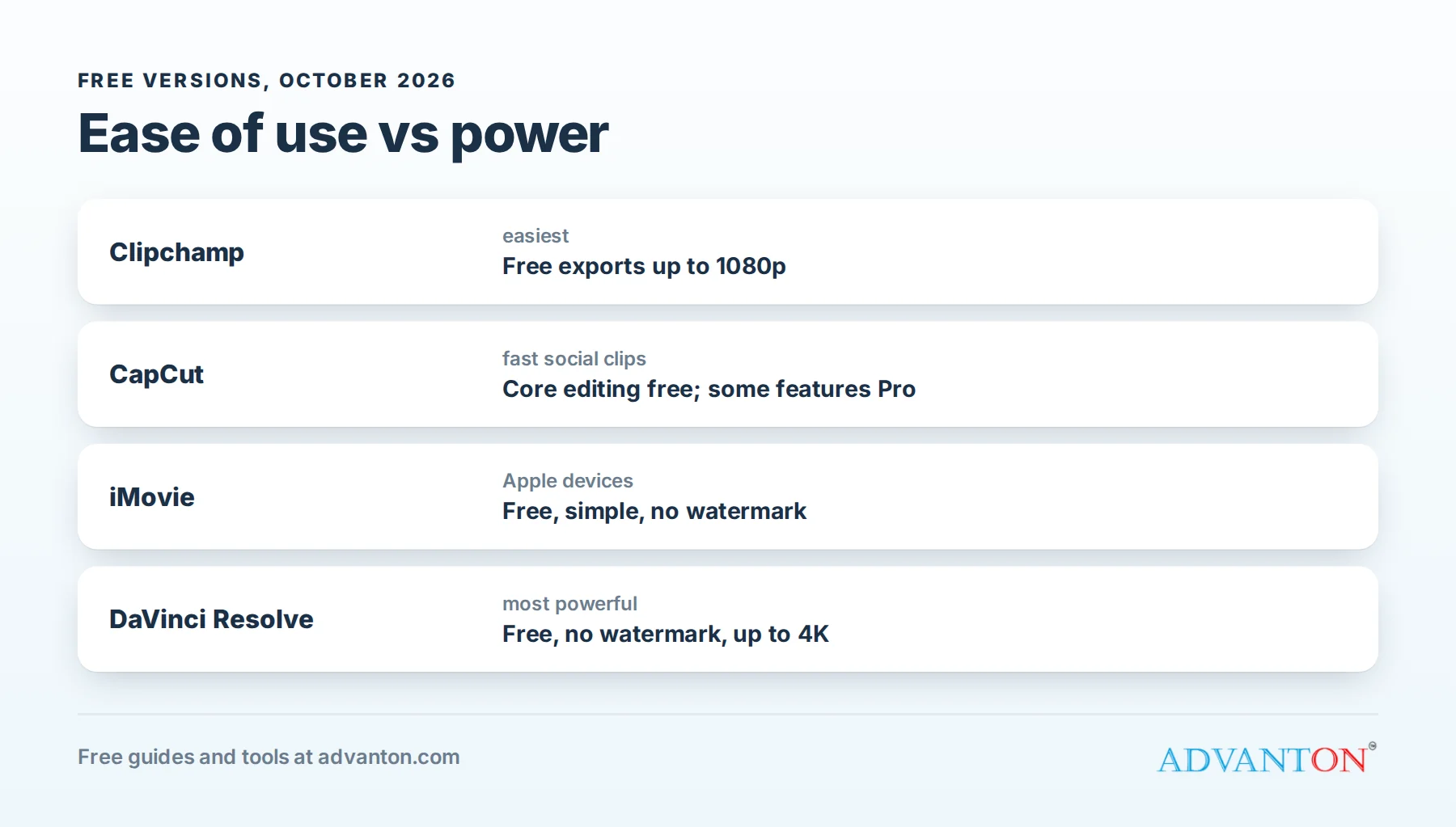
| Tool | Best for | Free version in brief |
|---|---|---|
| DaVinci Resolve | Professional results, longer videos | No watermark, no time limit, up to 4K |
| Clipchamp | Quick, easy edits on Windows or in a browser | Watermark-free exports up to 1080p |
| CapCut | Fast short-form social videos | Core editing free with no watermark on standard exports; some features need Pro |
| iMovie | Apple users who want simple editing | Free on Mac, iPhone and iPad |
| Shotcut / Kdenlive / OpenShot | Free, open-source desktop editing | Free forever, no watermark |
How we evaluated
We compared watermarks, export quality, ease of use for beginners, captions and audio tools, platform support, and which features sit behind paid plans. Free-plan details come from current 2026 reviews and change often; check before relying on a specific feature.
The best free video editors, reviewed
1. DaVinci Resolve: most powerful free editor
DaVinci Resolve’s free version is a genuinely professional editor used in film and television. It includes editing, color grading, audio mixing and visual effects, and exports up to 4K with no watermark and no time limit. A paid Studio version adds advanced features, but most small businesses never need it.
The catch: it’s complex, and it needs a reasonably powerful computer. Beginners should watch a basic tutorial first.
Choose it if: you want the best quality and are willing to learn, especially for longer videos, testimonials or ads.
2. Clipchamp: easiest for beginners
Clipchamp, from Microsoft, runs in a browser and comes with Windows 11. It’s template-friendly, with simple trimming, text, transitions, captions and stock media. The free plan exports without a watermark at up to 1080p, which is plenty for social media and websites.
The catch: 4K exports and some premium stock and features need a paid plan.
Choose it if: you want to make clean, simple videos quickly without installing anything.
3. CapCut: fastest for short social videos
CapCut is popular for short-form vertical videos, with trendy templates, auto-captions, effects and quick editing on phones and computers. Core editing remains free, and standard exports carry no watermark.
The catch: CapCut has moved a growing share of its effects, templates and AI features behind CapCut Pro, and free-plan limits vary by platform and region. Check what’s included before building your workflow around it.
Choose it if: you make lots of short social videos and want speed.
4. iMovie: best for Apple users
iMovie is free on Macs, iPhones and iPads. It’s simple, reliable and exports clean videos, with themes, titles and basic audio tools.
The catch: Apple devices only, and limited advanced features.
Choose it if: you work on Apple devices and want simplicity.
5. Shotcut, Kdenlive and OpenShot: best open-source options
These free, open-source editors run on Windows, Mac and Linux, with no watermark and no paid tier. Kdenlive and Shotcut are the most capable; OpenShot is the simplest.
The catch: interfaces are less polished, and there are fewer templates and stock assets.
Choose it if: you want a free desktop editor with no account or upsells.
Comparison at a glance
| DaVinci Resolve | Clipchamp | CapCut | iMovie | Shotcut / Kdenlive | |
|---|---|---|---|---|---|
| Watermark on free exports | No | No | No (standard exports) | No | No |
| Max free resolution | Up to 4K | 1080p | Varies by platform | Up to 4K on supported devices | Up to 4K |
| Ease for beginners | Hard | Very easy | Easy | Easy | Moderate |
| Platforms | Windows, Mac, Linux | Browser, Windows | Phone, desktop, browser | Apple only | Windows, Mac, Linux |
| Auto-captions | Yes | Yes | Yes | Limited | Limited |
Which should you choose?
- Brand new to video: Clipchamp, or iMovie on Apple devices.
- Lots of quick social clips: CapCut, checking current free features.
- Best possible quality: DaVinci Resolve.
- No accounts or upsells: Shotcut or Kdenlive.
A simple workflow for business videos
- Plan in one sentence: what the viewer should learn or do, such as "book a free estimate".
- Film on your phone: horizontal for websites and YouTube, vertical for social media. Use daylight, and hold steady or use a cheap tripod.
- Record clear sound: film close to the speaker, away from wind and noise. A small clip-on microphone is the best low-cost upgrade.
- Edit tightly: cut pauses and mistakes; get to the point in the first 3 seconds.
- Add captions: many people watch with the sound off.
- Add your logo and a call to action at the end: website, phone number or a QR code.
- Export at the right size: 1080p is enough for most uses.
A low-cost equipment checklist
You don’t need a camera crew. Start with:
- Your phone, filming at 1080p or 4K.
- A small tripod or phone stand for steady shots.
- A clip-on microphone, the single biggest quality upgrade.
- Natural light: face a window, or film outdoors in shade.
- Optional: a small LED light for indoor filming.
How to film a customer testimonial
- Ask permission, and get it in writing for marketing use.
- Prepare three questions: What problem did you have? Why did you choose us? What was the result?
- Film in a quiet, bright place, with the customer slightly off-center and the camera at eye level.
- Ask them to repeat the question in their answer, so clips make sense on their own.
- Keep the best 30 to 60 seconds, add captions and your logo, and end with a call to action.
A 30-second script you can copy
- Hook (3 seconds): "Here’s why your gutters overflow every fall."
- Problem (7 seconds): show the problem clearly.
- Solution (12 seconds): show what you do, step by step.
- Proof (5 seconds): the result, or a quick customer comment.
- Call to action (3 seconds): "Book a free estimate; link in our profile."
Write the script in a phone note, film each part separately, and join them in your editor.
Editing basics
- Cut on action: trim at the moment something moves, so cuts feel natural.
- Use cutaway shots: short clips of your hands, tools or products cover jumps in speech and keep viewers interested.
- Keep a steady pace: most social clips change shot every two to four seconds.
- Balance audio: voice clearly louder than any music.
- Finish with a clear end card: logo, website or phone number, and one action.
Five video ideas that work for small businesses
- Before and after: contractors, cleaners, groomers, detailers.
- Behind the scenes: how a product is made or a job is done.
- Quick tip: a 30-second expert answer to a common customer question.
- Customer testimonial: a happy customer in their own words (with permission).
- Meet the team: faces build trust, especially for home services.
Video sizes cheat sheet
| Where | Shape |
|---|---|
| Instagram Reels, TikTok, YouTube Shorts, Stories | Vertical (9:16) |
| Instagram and Facebook feed | Square (1:1) or vertical (4:5) |
| YouTube, website | Horizontal (16:9) |
Turn one video into many
A two-minute testimonial or how-to video can become:
- Three or four short clips for Reels, Shorts and TikTok.
- A square version for the Facebook and Instagram feed.
- A website version on your home or service page.
- Still frames for social posts and your Google Business Profile.
- A quote graphic using the customer’s best line.
Filming once and editing several versions is the most efficient way to keep your channels active.
Putting video on your website
- Upload to YouTube (public or unlisted) and embed it on your page, which keeps your site fast and makes the video searchable.
- Upload directly only for short, small clips, such as a background video, because large video files slow pages down.
- Add a short written summary under the video, which helps visitors and search engines.
Measuring results
Check views, how long people watch (retention), clicks to your website, and calls or messages that mention the video. Compare video posts with photo posts for a month, and do more of what brings customers. The Marketing Hub helps you track which channels bring in customers.
Publishing checklist
- Captions checked for mistakes.
- First three seconds grab attention, without a long logo intro.
- Call to action at the end, and in the post text.
- Right shape for the platform.
- Cover image or thumbnail chosen deliberately, not a random frame.
- Location and service mentioned in the post text, which helps local customers find you.
Where business videos work best
- Google Business Profile: short videos of your work and premises help your listing stand out in local search.
- Your website’s service pages: a short explainer or testimonial next to the "request an estimate" button.
- Social media: short vertical clips, posted consistently.
- Email: a thumbnail image linking to the video often gets more clicks than text alone.
- Ads: your best-performing organic video is often a strong starting point for a paid ad.
Music and copyright
Use music you have the rights to: the free libraries inside editing tools, royalty-free libraries, or music licensed for commercial use. Popular songs can get videos muted or removed, especially in business accounts and ads.
Captions and accessibility
Captions help viewers watching without sound, people who are deaf or hard of hearing, and anyone in a noisy place. Most free editors now generate captions automatically; always review them for mistakes, especially names, prices and technical terms. Keep captions large, high-contrast, and away from the bottom edge, where apps place their own buttons.
Common mistakes
- Long intros. Get to the point immediately.
- Poor audio, which viewers tolerate far less than imperfect video.
- No captions.
- No call to action telling viewers what to do next.
- Using copyrighted music.
When to upgrade
Pay when you need premium stock footage or music, brand kits and templates for consistency, more AI features, 4K exports in a simple editor, or team collaboration, and when it saves real time each week.
Frequently asked questions
What’s the best free video editor with no watermark?
DaVinci Resolve, Clipchamp, iMovie, Shotcut, Kdenlive and OpenShot all export without watermarks on their free versions.
Can I edit business videos on my phone?
Yes. CapCut, iMovie and other mobile editors handle short social videos well.
How long should a business video be?
For social media, often 15 to 60 seconds. Testimonials and explainers for your website can run longer, typically one to three minutes.
Should I use AI video tools?
They’re useful for captions, removing silences and quick drafts. For marketing, real footage of your work, team and customers usually builds more trust than generated video.
Do I need a fast computer for video editing?
For simple edits in Clipchamp, CapCut or iMovie, most modern computers and phones are fine. DaVinci Resolve works best with a recent computer and a dedicated graphics card, especially for 4K. If editing feels slow, edit at a lower preview quality and export at full quality.
How often should a small business post videos?
Consistency beats volume. One or two short videos a week, every week, usually does more than a burst of ten followed by silence. Batch-film several on one day to make it manageable, then schedule them across the coming weeks so posting never stalls.
Keep learning
- Best free graphic design tools
- Free QR code generator: add one to the end of your videos
- Marketing Hub: track which channels bring customers
Sources
- Toolradar, Best free video editing software in 2026
- Primal Video, Best free video editing software for PC and Mac in 2026
- Lilach Bullock, Free video editing software that works in 2026
Last reviewed October 28, 2026. Startup costs are estimates; check local prices, licensing and tax rules before you commit money.


Leave a Reply