
Small businesses need a steady stream of graphics: social media posts, flyers, menus, price lists, signs, presentations and product photos. Hiring a designer for every piece isn’t realistic, but the free design tools available in 2026 are good enough that a business owner with no design training can produce clean, professional work.
This guide reviews the best free graphic design tools, explains each free plan’s limits, matches tools to common jobs, and finishes with simple design rules that make anything look more professional.
Quick picks
Table of Contents
| Tool | Best for | Free plan in brief |
|---|---|---|
| Canva Free | Social posts, flyers, presentations | Huge template library, 5 GB storage, one brand kit with 3 colors |
| Adobe Express (Free) | Quick graphics with Adobe stock photos and fonts | 100,000+ templates, 5 GB storage, limited AI generations |
| Affinity (by Canva) | Professional photo editing, illustration and layout | The core apps became free in 2026; advanced AI features need Canva Pro |
| Figma (Starter) | Website and app mockups, layouts | Unlimited personal drafts, 3 shared design files |
| GIMP | Photo editing (open source) | Completely free |
| Inkscape | Logos and vector graphics (open source) | Completely free |
How we evaluated
We looked at what each tool’s free plan includes, how quickly a non-designer can produce something good, the templates and assets available, file and export options for print and web, and the catches that push you toward paying. Free-plan details come from current 2026 sources and change often, so check each vendor’s pricing page.
The best free design tools, reviewed
1. Canva Free: best overall for non-designers
Canva is the easiest way for most owners to create good-looking graphics fast. Pick a template, swap in your text, photos and colors, and download. Its free library of templates and stock elements is very large, and it covers almost every format a small business needs: social posts, stories, flyers, posters, menus, business cards, presentations, simple videos and more.
Free plan limits: 5 GB of storage, one brand kit limited to three colors, a smaller stock library than the paid plan, and a limited allowance of AI features. Templates and elements marked as premium need Canva Pro.
Choose it if: you want polished results quickly without learning design software.
2. Adobe Express: best for Adobe’s stock photos and fonts
Adobe Express is the closest alternative to Canva, with templates, quick actions like background removal and resizing, and access to Adobe’s library of fonts and stock assets.
Free plan limits: 5 GB of storage, a large template library (over 100,000), and a limited number of AI image generations. Brand kits, premium templates and some tools need Premium.
Choose it if: you like Adobe’s fonts and photography, or already use other Adobe products.
3. Affinity: best free professional tools
Canva acquired the Affinity design apps and, in 2026, made the core software free. Affinity covers professional photo editing, illustration and page layout, the kind of work that once meant paying for Photoshop, Illustrator or InDesign.
Free plan limits: the advanced AI features inside Affinity, such as generative fill, require Canva Pro.
Choose it if: you need professional control for photo retouching, detailed illustration or multi-page print layouts, and are willing to learn.
4. Figma: best for website and app layouts
Figma is the industry standard for designing websites and apps, and many teams use it for presentations and layouts too. It’s collaborative, so you can share designs and get comments easily.
Free plan limits: the Starter plan includes unlimited personal drafts but three shared design files, and limited AI features.
Choose it if: you’re planning a website or app, or working with a web designer.
5. GIMP: best free photo editor
GIMP is free, open-source photo editing software for Windows, Mac and Linux. It handles retouching, cropping, color correction and layered editing.
The catch: the interface is less friendly than paid photo editors, so expect a learning curve.
Choose it if: you need a capable photo editor that’s free forever.
6. Inkscape: best free logo and vector tool
Inkscape is free, open-source vector design software, ideal for logos, icons and illustrations that need to scale cleanly from a business card to a banner.
The catch: vector design takes practice, and Inkscape’s interface can feel technical at first.
Choose it if: you’re creating a logo or graphics that must print sharply at any size.
Also worth knowing: Advanton’s Brand & Print Studio
Disclosure: this is Advanton’s own free tool. Our Brand & Print Studio is narrower than the tools above: you save your business name, logo and colors once, and it creates matching business cards, flyers, EDDM postcards, yard signs, door hangers, gift certificates, QR codes and an email signature, sized correctly for printing. It’s useful when you want consistent printed materials quickly, rather than open-ended design.
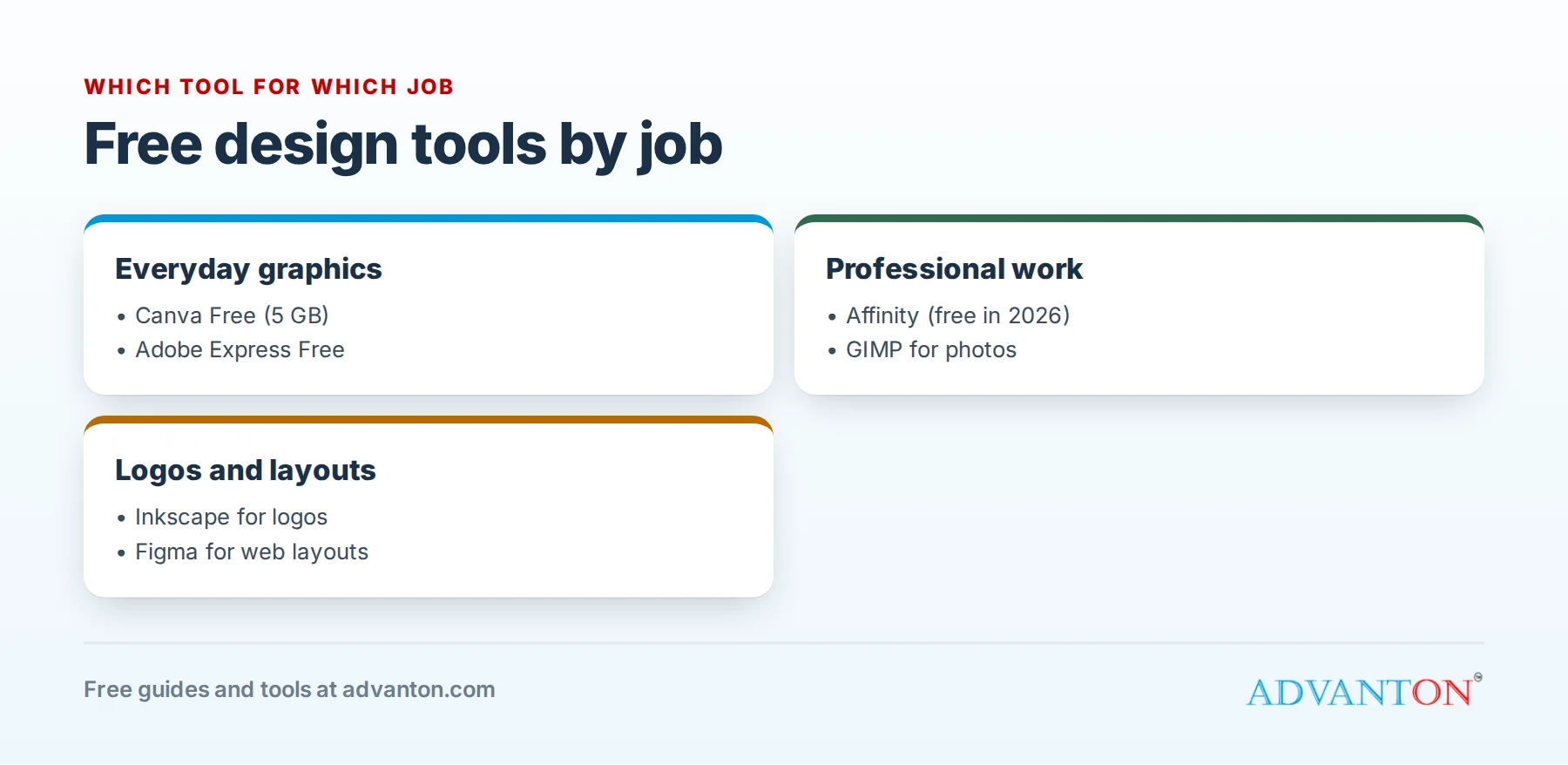
Which tool for which job?
| Job | Best free tool |
|---|---|
| Social media posts and stories | Canva or Adobe Express |
| Flyers, menus and posters | Canva, or Advanton’s Brand & Print Studio for print-ready sizes |
| Logo | Inkscape, or a template in Canva as a starting point |
| Product photo touch-ups | GIMP, Affinity or Canva’s background remover |
| Website or app mockups | Figma |
| Multi-page brochures and catalogs | Affinity |
| Business cards and signs | Advanton’s Brand & Print Studio or Canva |
Comparison at a glance
| Canva Free | Adobe Express | Affinity | Figma Starter | GIMP | Inkscape | |
|---|---|---|---|---|---|---|
| Ease of use | Very easy | Very easy | Moderate | Moderate | Harder | Harder |
| Templates | Very large library | Large library | Few | Community files | None | Few |
| Works in browser | Yes | Yes | No (desktop) | Yes | No | No |
| Best for | Everyday graphics | Everyday graphics | Professional work | Web layouts | Photos | Logos and vectors |
Design rules that make anything look professional
- Use two fonts at most, one for headings and one for text, and keep using them.
- Stick to your brand colors, usually one or two main colors plus a neutral.
- Leave space. Crowded designs look cheap; empty space looks confident.
- Make one thing the hero: a headline, an offer or a photo. Everything else supports it.
- Make text readable: strong contrast between text and background, and large enough to read on a phone.
- Align everything to a few clear edges.
- Use real photos of your work, team and products whenever possible; customers trust them more than stock photos.
- Keep it consistent. Use the same logo, colors and fonts everywhere so customers recognize you.
Build a simple brand kit first
Before designing anything, decide these once and write them down:
- Logo files: a full-color version, a one-color version, and a version that works on dark backgrounds.
- Colors: one or two main colors and one neutral, with their exact color codes.
- Fonts: one heading font and one text font.
- Photo style: bright and natural, or bold and graphic.
- A few phrases: your tagline, service area and call to action.
Save them in your design tool’s brand kit (Canva’s free plan allows one kit with three colors), or in Advanton’s free Brand Kit, which fills them into every design in the Brand & Print Studio.
Templates worth making once
Create these templates once, then reuse them every time:
- Weekly social post with your colors and logo position fixed.
- Offer or promotion flyer with space for the headline, details and a QR code.
- Price list or menu.
- Customer review graphic that turns a five-star review into a post.
- Event or announcement post.
Reusing templates is what makes a small business’s marketing look consistent and professional, with almost no extra time.
A worked example: one design, five formats
A bakery creates a holiday pre-order promotion once, then adapts it:
- Instagram post (square): photo of the holiday box, headline "Pre-order holiday treats", the order deadline.
- Story (vertical): same photo and headline, with a large "Order now" link sticker.
- Flyer for the counter: adds the full menu and prices, plus a QR code linking to the order form.
- Email header: a wide banner version of the photo and headline.
- Sign for the window: just the headline, deadline and QR code, readable from across the street.
Same message, same colors and fonts, five formats, made in about an hour with resize tools.
Better photos with your phone
Good photos improve every design more than any tool. A few habits make a big difference:
- Use natural light: shoot near a window or outdoors in shade, and avoid harsh overhead lights.
- Clean the lens before every shoot.
- Keep backgrounds simple: a plain wall, a wooden table, or your real workspace tidied up.
- Shoot more than you need, from several angles, and pick the best.
- Show people and real work, such as your team, your hands at work and finished jobs.
- Edit lightly: straighten, crop, and adjust brightness; avoid heavy filters.
Printing tips
- Download print files as PDF at high quality, with bleed (extra image beyond the cut line) if your printer asks for it.
- Use high-resolution images, generally at least 300 pixels per inch at the printed size.
- Order a single proof before printing hundreds.
- Check colors on paper, since screens show colors more brightly than ink.
Designing for print vs screen
| Screen | ||
|---|---|---|
| Color | RGB (bright, glowing) | CMYK (ink; often slightly duller) |
| Resolution | Lower is fine | At least 300 pixels per inch at printed size |
| File type | PNG or JPG | High-quality PDF |
| Extras | None | Bleed and safe margins |
Most free tools handle the conversion when you choose a "PDF print" download, but check your printer’s requirements.
Accessibility basics
- Contrast: dark text on light backgrounds, or the reverse, never gray on gray.
- Size: text large enough to read on a phone or from a distance on a sign.
- Don’t rely on color alone to show meaning, such as red for "sold out"; add words.
- Add alt text to images on your website and social posts, describing what’s shown.
Copyright and licensing
- Use only images, fonts and icons you’re allowed to use commercially. Free plans usually include commercially usable assets, but check each tool’s license, especially for logos.
- Logos made from templates may not be fully unique or trademarkable; for an important brand, create an original design.
- Don’t use photos found online without permission.
Common mistakes
- Too many fonts and colors in one design.
- Tiny text that’s unreadable on phones.
- Low-resolution logos that blur when printed.
- Different styles everywhere, so customers don’t recognize the brand.
- Using images without the right license.
When to hire a designer
Free tools cover everyday graphics, but a professional designer is worth the money for your logo and core brand identity, packaging for products sold in stores, a major website redesign, and big campaigns where results depend on standing out. A good designer creates the system (logo, colors, fonts and templates) that you then use yourself in free tools every day, so the investment keeps paying off for years.
When to upgrade
Consider paying when you need a full brand kit with multiple colors, fonts and logos, premium templates and stock, more storage, team collaboration, or larger AI allowances, and when the time saved is worth more than the monthly cost.
Frequently asked questions
Is Canva free for commercial use?
Canva’s free content can generally be used in commercial designs, with some restrictions, such as on reselling templates unchanged or using elements as part of a trademark. Read Canva’s license for the details.
What’s the best free tool for designing a logo?
Inkscape for an original vector logo; Canva for a quick starting point. For an important brand, an original design is worth the effort.
Do I need design training?
No. Templates, good photos and the rules above will take most businesses a long way.
Can AI design tools replace a designer?
AI features in free tools are good for quick ideas, background removal and resizing. For a logo or brand you’ll use for years, it’s still worth getting an original design, from a designer or by carefully creating your own.
Which file format should I send to a printer?
Usually a high-quality PDF with bleed. Ask your printer for their exact requirements before you design.
Keep learning
- Brand & Print Studio: matching cards, flyers and signs
- Best free video editing software
- Free QR code generator
Sources
- Techpresso, Is Canva Pro worth it in 2026? (free plan limits)
- eesel, Canva AI pricing in 2026 (Affinity made free)
- Krea, Adobe Express free plan and pricing in 2026
- Krea, Canva alternatives in 2026 (Figma Starter limits)
Last reviewed October 28, 2026. Startup costs are estimates; check local prices, licensing and tax rules before you commit money.


Leave a Reply