
A short screen recording can replace a long email, a confusing phone call or a training session you’d otherwise repeat every time someone new joins. Show a customer how to use your booking page, walk a new hire through your invoicing system, or record a quick video proposal: screen recording is one of the simplest ways to communicate clearly.
You don’t need to pay for it. Both Windows and Mac include free screen recording, and several excellent free tools add webcam, editing and instant sharing. This guide reviews the best free options in 2026.
Quick picks
Table of Contents
| Tool | Free plan in brief | Best for |
|---|---|---|
| Windows Snipping Tool | Built into Windows 11; records screen video | Quick recordings on Windows |
| Mac Screenshot toolbar | Built in; press Cmd + Shift + 5 | Quick recordings on Mac |
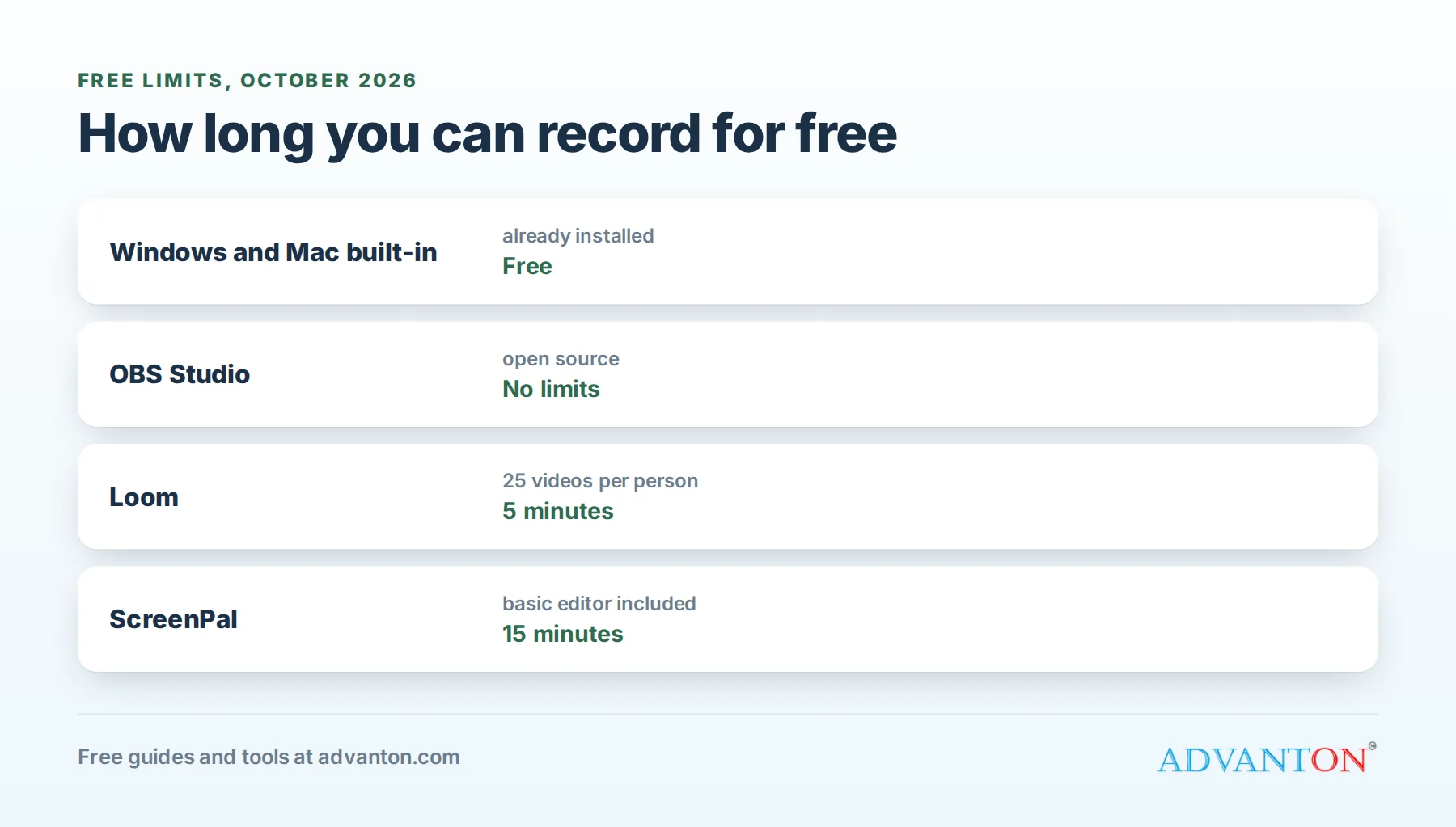
| OBS Studio | Free and open source, no limits | Professional recordings and live streaming |
| ShareX | Free and open source (Windows) | Screenshots, GIFs and quick clips |
| Loom | Videos up to 5 minutes, 25 videos per person | Instant shareable video messages |
| ScreenPal | Recordings up to 15 minutes, basic editor | Easy tutorials |
How we evaluated
We compared recording limits, webcam and audio options, editing, sharing, watermarks, ease of use and platform support. Free limits come from current 2026 sources; check each tool’s pricing before relying on them.
The best free screen recorders, reviewed
1. Windows Snipping Tool: already on your PC
Windows 11’s Snipping Tool now records screen video as well as screenshots. Open it, choose record, select an area, and start.
The catch: basic features, with little editing and limited audio and webcam options.
Choose it if: you need a quick recording without installing anything.
2. Mac Screenshot toolbar: already on your Mac
Press Cmd + Shift + 5 to record the whole screen or a selected area, with options for a microphone and a countdown timer. QuickTime Player can also record and do simple trims.
The catch: no webcam overlay or advanced editing.
Choose it if: you’re on a Mac and want something instant.
3. OBS Studio: powerful and completely free
OBS Studio is free, open-source software for Windows, Mac and Linux with no recording limits. You can combine screen, webcam, images and audio sources into scenes, and it’s also used for live streaming.
The catch: a learning curve; it’s more than most quick tasks need.
Choose it if: you create regular training videos, webinars or polished content.
4. ShareX: the Windows power tool
ShareX is free, open source and Windows-only, excellent for screenshots, annotated images, short recordings and animated GIFs, with many upload and sharing options.
The catch: a busy interface with lots of settings.
Choose it if: you make many quick captures, such as for support replies or bug reports.
5. Loom: instant video messages
Loom records your screen and webcam, then gives you a shareable link immediately, with viewers able to comment and react. The free plan allows videos up to 5 minutes and up to 25 videos per person.
The catch: the 5-minute limit and video cap mean deleting old videos or upgrading.
Choose it if: you send quick video explanations to customers or your team.
6. ScreenPal: easy tutorials
ScreenPal (formerly Screencast-O-Matic) offers screen and webcam recording, a basic editor and hosting, with free recordings up to 15 minutes.
The catch: the time limit, and some features are reserved for paid plans; check whether your plan adds a watermark.
Choose it if: you want an easy tool for short tutorials.
Comparison at a glance
| Windows | Mac | OBS Studio | ShareX | Loom | ScreenPal | |
|---|---|---|---|---|---|---|
| Cost | Free | Free | Free | Free | Free plan | Free plan |
| Length limit | None noted | None noted | None | None | 5 minutes | 15 minutes |
| Webcam | Limited | No | Yes | Limited | Yes | Yes |
| Instant sharing link | No | No | No | Yes (uploads) | Yes | Yes |
| Editing | Minimal | Trim | Via other tools | Minimal | Basic | Basic |
Which should you choose?
- Quick, occasional recordings: your computer’s built-in tool.
- Video messages with instant links: Loom.
- Short tutorials with simple edits: ScreenPal.
- Polished, longer videos or webinars: OBS Studio.
- Screenshots and GIFs for support: ShareX.
How small businesses use screen recordings
| Use | Example |
|---|---|
| Training | How to use your booking system, POS or invoicing tool |
| Customer support | "Here’s how to reset your password" or "how to place an order" |
| Sales | A personal video walking a prospect through your proposal |
| Onboarding clients | A tour of the portal or deliverables you’ve prepared |
| Feedback | Reviewing a website draft or design while talking through changes |
| Documentation | Recording a process once, then linking it in your procedures |
How to record a clear video in 10 minutes
- Plan three points you want to cover.
- Close unrelated tabs and notifications, and hide personal or customer information.
- Use a headset or external microphone if possible; clear audio matters more than video quality.
- Record a short test and listen back.
- Speak naturally, move the cursor slowly and pause between steps.
- Keep it short: two to five minutes is ideal for most topics.
- Trim the start and end, add a title, and share.
A simple outline template
Hook (10 seconds): "In two minutes, I’ll show you how to [task]."
Steps (1 to 3 minutes): each step, slowly, with what to click and why.
Common problem (30 seconds): "If you see [error], do [fix]."
Next step (10 seconds): "Now you’re ready to [result]. Questions? Reply to this email."
A rough outline keeps videos short and clear without a full script.
Sound and setup
- Microphone: a basic USB microphone or a headset microphone usually sounds much better than a laptop’s built-in mic.
- Room: record in a quiet room with soft furnishings, which reduce echo.
- Webcam: place it at eye level, with light facing you rather than behind you.
- Screen: increase text size and zoom in on small details so viewers can read them on phones.
How long should each video be?
| Video type | Suggested length |
|---|---|
| Quick answer to a customer question | Under 2 minutes |
| Sales or proposal walkthrough | 2 to 4 minutes |
| Step-by-step tutorial | 3 to 6 minutes |
| Staff training on a full process | Several short videos rather than one long one |
| Webinar or workshop | As long as needed, with chapters or timestamps |
Privacy: check before you share
Screen recordings can accidentally reveal customer names, emails, invoices, passwords or private messages. Before recording, close other apps, turn off notifications, use test data where possible, and watch the video before sending. If you record calls or meetings with other people, get their consent first; recording laws vary by state.
Your first OBS Studio setup
- Install OBS Studio and run the auto-configuration wizard, choosing "optimize for recording".
- Add a source: "Display Capture" (whole screen) or "Window Capture" (one app).
- Add your webcam as a "Video Capture Device" and resize it into a corner.
- Check your microphone level in the audio mixer; speak and aim for the middle of the meter.
- Choose where recordings save in Settings.
- Click "Start Recording," then "Stop" when done.
Save your layout as a scene, and your next recording takes seconds to start.
Add captions
Captions make videos usable for people who are deaf or hard of hearing and for anyone watching without sound, which is common on phones and at work. Many recording and video tools can generate captions automatically; check and correct names, numbers and technical terms before sharing.
Build a video library
Store your training and support videos in one shared folder or page, named clearly ("How to issue a refund", "How to book a job"), and link them from your procedures and help articles. Over time, you’ll have a library that answers common questions and trains new hires without you. See best free note-taking and documentation apps.
A worked example: training a new hire
A small bookkeeping firm records ten short videos of its monthly client routine: downloading statements, categorizing transactions, reconciling accounts and sending reports. Each video is under five minutes, made with free tools and stored in a shared folder alongside written checklists. New assistants watch them during their first week and rewatch as needed. Training time drops, and the owner stops repeating the same explanations.
Video messages that win customers
A short personal video can stand out from text emails: introduce yourself, show the customer’s website or quote on screen, and explain your recommendation in two minutes. Use the customer’s name, keep it genuine, and end with one clear next step. Many prospects remember the business that took a few minutes to explain things personally.
GIFs for quick support answers
A short animated GIF, a few seconds showing exactly where to click, can answer a support question faster than a video. ShareX and other tools can turn a screen area into a GIF. Keep GIFs short and focused, and pair them with one line of text explaining the step.
Keep videos current
Software changes, and outdated videos confuse people. Note the date and software version in each video’s title or description, review your library every few months, and re-record anything that no longer matches what viewers see. Short videos are much easier to replace than long ones.
Editing your recordings
For simple edits, such as trimming, cutting mistakes and adding captions, use your recorder’s basic editor or a free video editor. Captions help viewers who watch without sound. See our free video editing software roundup.
Where to host and share
| Option | Best for |
|---|---|
| Your recorder’s sharing link (Loom, ScreenPal) | Quick one-to-one messages |
| Cloud storage folder | Internal training libraries |
| YouTube (unlisted) | Customer tutorials you link from your website |
| Your help center | Embedded videos beside written steps |
Choose private or unlisted settings for anything internal, and remove access when it’s no longer needed.
A simple team policy
If your team records videos, agree on where they’re stored, how they’re named, what must never appear on screen (customer data, passwords, internal finances), and who approves customer-facing videos. Consistent habits keep your library useful and safe.
Measure what works
Some sharing tools show whether a video was watched and for how long. Use that information to improve: if viewers drop off early, shorten your introduction; if a support video gets watched often, link it in more places. For sales videos, a quick view notification is a good moment to follow up.
Common mistakes to avoid
- Poor audio.
- Videos that are too long.
- Recording sensitive information.
- No title or description, making videos hard to find later.
- Recording without consent when others are on screen or on the call.
Repurpose your recordings
One good recording can serve many purposes: a training video for staff, a short clip for a help article, a GIF for support replies, and a few seconds for a social post showing how easy your service is to use. Plan recordings with reuse in mind, and you’ll get more value from every minute you record.
When to upgrade
Consider paid plans for longer videos, unlimited storage, removal of branding, team libraries, advanced editing, or viewer analytics.
Frequently asked questions
Is there a free screen recorder with no watermark?
Yes. The built-in Windows and Mac tools, OBS Studio and ShareX don’t add watermarks.
Can I record my webcam and screen together for free?
Yes, with OBS Studio, Loom or ScreenPal’s free plans.
How long can a free Loom video be?
Up to 5 minutes on the free plan, with up to 25 videos per person.
What’s the easiest screen recorder for beginners?
Your computer’s built-in tool for quick recordings, or Loom for instant sharing.
Can I record a video call or webinar?
Most meeting apps include recording, and OBS Studio can record anything on your screen. Always tell participants and get consent before recording; laws vary by state.
Which free recorder works on a Chromebook?
Chromebooks include a built-in screen recorder in the quick settings menu, and browser-based tools such as Loom also work.
Should I show my face on camera?
For sales and customer messages, a small webcam view adds a personal touch and builds trust. For detailed training, the screen alone often works better.
Keep learning
Sources
- Dupple, Best free screen recorders in 2026
- Testimonial.to, 12 choices for good free recording software in 2026
Last reviewed October 28, 2026. Startup costs are estimates; check local prices, licensing and tax rules before you commit money.


Leave a Reply