
Every business runs on information: customer details, how-to steps, passwords (in a password manager, not notes), meeting notes, ideas and checklists. When that information lives in your head, on sticky notes or scattered across emails, things get missed, and the business can’t run without you.
A good note-taking app fixes that. Several excellent ones are free, though the landscape has shifted: Evernote, long the default, cut its free plan sharply. This guide reviews the best free options in 2026 and shows how to document your business simply.
Quick picks
Table of Contents
| App | Free plan in brief | Best for |
|---|---|---|
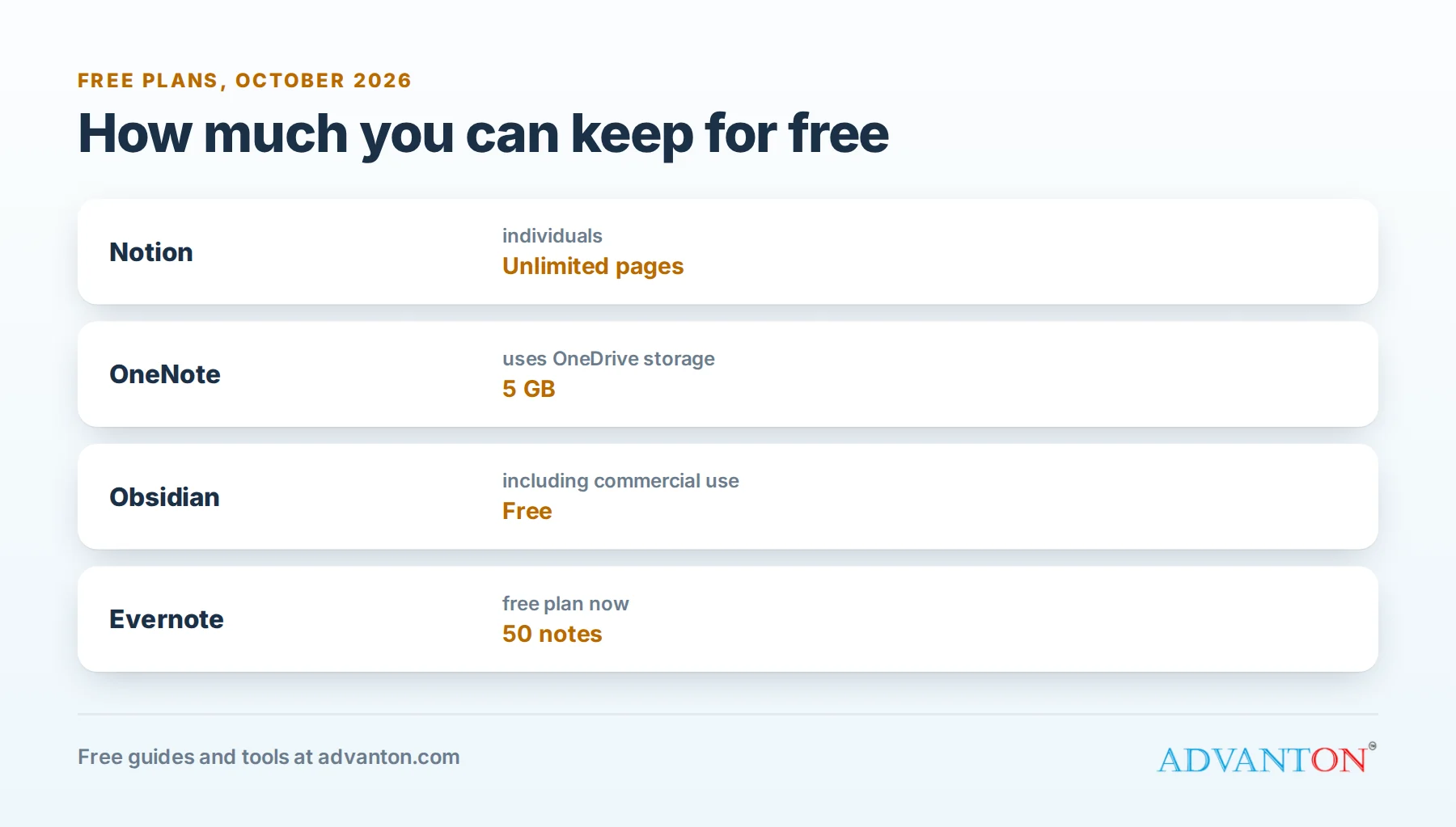
| Notion | Unlimited pages and blocks for individuals | Notes plus databases and team wikis |
| Microsoft OneNote | Free with a Microsoft account; uses your 5 GB of OneDrive storage | Freeform notebooks |
| Obsidian | Free, including commercial use; notes stored as files you own | Privacy and owning your data |
| Google Keep | Free with a Google account | Quick notes, checklists and reminders |
| Apple Notes | Free on Apple devices | Apple users |
| Joplin | Free and open source | An open-source Evernote replacement |
Much smaller free plan: Evernote’s free plan now allows only 50 notes and 1 notebook, with limited devices.
How we evaluated
We compared free-plan limits, syncing across devices, sharing with a team, organization (folders, tags, links, databases), search, offline access, data ownership and ease of use. Limits come from current 2026 sources; check each app’s pricing page.
The best free apps, reviewed
1. Notion: notes, wikis and databases
Notion’s free plan gives individuals unlimited pages and blocks, with databases that turn notes into task lists, customer trackers and content calendars. It’s excellent for building a simple company wiki.
The catch: Notion can feel overwhelming at first, and team features and larger file uploads are limited on the free plan.
Choose it if: you want notes, procedures and simple trackers in one organized place.
2. Microsoft OneNote: freeform notebooks
OneNote is free with any Microsoft account, with notebooks, sections and pages you can type, draw or paste anywhere on. There’s no limit on the number of notes; storage counts toward your 5 GB of free OneDrive space.
The catch: organization can get messy without a clear structure.
Choose it if: you use Microsoft products or like a paper-notebook feel.
3. Obsidian: notes you own
Obsidian stores notes as plain text files on your own device, so they stay readable in any text editor. As of 2026, it’s free even for commercial use, with optional paid add-ons for syncing and publishing.
The catch: syncing across devices requires a paid add-on or your own setup, and team sharing isn’t its strength.
Choose it if: you value privacy and want full control over your files.
4. Google Keep: quick capture
Google Keep is perfect for quick notes, checklists, voice notes and reminders, synced across phone and computer with a Google account.
The catch: it’s not built for long documents or structured procedures.
Choose it if: you need fast capture on the go.
5. Apple Notes: built into Apple devices
Apple Notes is free, fast and synced through iCloud, with folders, checklists, scanning and sharing.
The catch: limited outside Apple devices, and iCloud storage is shared with your photos and backups.
Choose it if: you and your team use iPhones and Macs.
6. Joplin: open-source and free
Joplin is a free, open-source note app with notebooks, tags and an Evernote importer, plus syncing through services you choose.
The catch: less polished than commercial apps.
Choose it if: you’re leaving Evernote and want a free, open-source alternative.
Evernote: what changed
Evernote’s free plan now allows 50 notes and one notebook, with device limits, which makes it more of a trial than a free workspace. Existing users can export their notes; Notion, OneNote and Joplin all import from Evernote.
Moving from Evernote, step by step
- Export your notes from Evernote (notebooks export as .enex files).
- Choose your new app; Notion, OneNote and Joplin offer Evernote importers.
- Import one notebook first and check formatting, attachments and tags.
- Import the rest, then reorganize into a simple structure.
- Keep the export files as a backup until you’re confident everything moved.
Comparison at a glance
| Notion | OneNote | Obsidian | Google Keep | Apple Notes | Joplin | |
|---|---|---|---|---|---|---|
| Free limits | Unlimited for individuals | 5 GB OneDrive | Unlimited (local) | Google storage | iCloud storage | Unlimited |
| Team sharing | Good | Good | Limited | Basic | Basic | Limited |
| Structure | Pages and databases | Notebooks | Linked files | Simple notes | Folders | Notebooks |
| Offline | Partial | Yes | Yes | Partial | Yes | Yes |
| Best for | Wikis and trackers | Freeform notes | Data ownership | Quick capture | Apple users | Open source |
Which should you choose?
- Notes, procedures and a team wiki: Notion.
- Microsoft user or freeform style: OneNote.
- Privacy and owning your files: Obsidian.
- Quick capture on your phone: Google Keep.
- All-Apple team: Apple Notes.
- Leaving Evernote for open source: Joplin.
Many owners use two: Google Keep or Apple Notes for quick capture, and Notion or OneNote for organized documentation.
Choose in five questions
- Do others need to use it? Yes: Notion or OneNote. No: any app works.
- Do you need databases or trackers? Yes: Notion.
- Is privacy or file ownership a priority? Yes: Obsidian or Joplin.
- Do you mostly capture quick notes on your phone? Yes: Google Keep or Apple Notes.
- Do you already pay for Microsoft or Google? Use OneNote or Google’s tools to keep things in one place.
Document your business so it runs without you
Documentation is how a small business grows beyond the owner. Start with the tasks you repeat most:
| Document | Example |
|---|---|
| How we do it (procedures) | How to quote a job, open and close the shop, process a refund |
| Checklists | New customer onboarding, job completion, end-of-day cleanup |
| Templates | Quote emails, follow-ups, review requests |
| Who to call | Suppliers, repair people, accountant, insurance agent |
| Policies | Refunds, cancellations, time off, safety |
| New hire guide | First-week schedule, tools, expectations |
Starter templates
| Template | Sections |
|---|---|
| Procedure | Purpose, when to use, steps, common problems, last reviewed |
| Checklist | Task list with checkboxes, who does it, when |
| Meeting notes | Date, attendees, decisions, action items with owners |
| Customer notes | Contact details, preferences, history, next steps |
| Project page | Goal, deadline, tasks, files, updates |
Create each template once and duplicate it whenever you need it.
How to write a procedure in 15 minutes
- Do the task and list each step as you go.
- Write steps as short instructions starting with a verb: "Open the booking calendar."
- Add screenshots or photos where a picture is clearer.
- Note common problems and what to do.
- Ask someone else to follow it and fix anything confusing.
- Date it and review it every few months.
A simple structure for your workspace
- Company: mission, contact list, policies.
- Customers: onboarding steps, FAQ, templates.
- Operations: procedures and checklists by area.
- Team: new hire guide, schedules, training.
- Meetings: notes, decisions and action items.
Keep it shallow: two or three levels of folders or pages is easier to search and maintain.
Tags or folders?
Folders (or notebooks) work well for clear, stable categories, like departments or clients. Tags work better for things that cut across categories, like "urgent", "invoice" or "training". Most people do best with a few folders and a short list of agreed tags; too many tags become as messy as no tags.
Capture on the go
Use your phone to capture information as it happens: voice notes after a customer visit, photos of whiteboards and receipts, and document scanning built into many note apps. Review your quick notes once a day and move anything important into its proper place.
Sharing with clients and contractors
Many note apps let you share a single page by link, view-only or with editing. Use this for client project pages, job checklists or onboarding guides, and turn sharing off when the work ends.
A worked example: a cleaning business wiki
A cleaning company owner builds a free Notion workspace with a page for each service (standard, deep and move-out cleaning) containing room-by-room checklists, a supplies list and photos of "done right". New cleaners read the checklists before their first job and use them on their phones on-site. Quality becomes consistent, training takes days instead of weeks, and the owner stops answering the same questions. Cost: $0.
Meeting notes that lead to action
Use a simple template for every meeting: date, attendees, decisions made, and action items with an owner and a due date. Review open action items at the start of the next meeting. Decisions written down don’t get forgotten or argued about later.
Security: what not to store in notes
Don’t keep passwords, full card numbers or sensitive customer data in ordinary notes. Use a password manager for logins, store sensitive documents in secure, access-controlled storage, and turn on two-step verification for your note app. Remove team members’ access when they leave.
AI features in note apps
Many note apps now include AI that summarizes notes, drafts text or answers questions about your documents, often with limited free usage. They’re handy for turning messy meeting notes into clean summaries; review the results, and avoid pasting sensitive information you wouldn’t want processed by an outside service.
A weekly review routine
Once a week, spend 15 minutes: clear your quick-capture inbox into the right places, update any procedure that changed, archive finished projects, and check open action items from meetings. A short weekly review keeps your notes trustworthy, which is what makes people actually use them.
Back up and keep an exit
Your notes become valuable business records. Check how to export your notes (most apps offer Markdown, HTML or PDF export), make an export every few months, and store it with your other backups. If an app changes its plans, as Evernote did, you can move without losing anything.
Search like a pro
Good titles make notes easy to find: include the topic and the type, such as "Procedure: refund a card payment" or "Client: Smith kitchen remodel". Use consistent words, and add a few keywords at the bottom of important notes for things people might search.
Common mistakes to avoid
- Too many apps, so nobody knows where things are.
- Over-complicated structures that take more time to maintain than they save.
- Outdated procedures nobody trusts.
- Storing passwords in notes.
- Not sharing documentation with the team who needs it.
Make documentation a habit
The best time to document a task is the next time you do it. Keep a running "to document" list, and each week turn one item into a procedure. In a few months, the most important parts of your business will be written down, ready for new hires, vacations or the day you hand work to someone else.
When to upgrade
Consider paid plans when you need team permissions, version history, larger uploads, guest access, advanced AI features or administration for many users.
Frequently asked questions
What happened to Evernote’s free plan?
It now allows only 50 notes and one notebook, with device limits. Many users have moved to Notion, OneNote, Obsidian or Joplin, which import Evernote notes.
Is Notion free for small businesses?
Its free plan suits individuals well; teams can start free but may need a paid plan for more collaboration features.
Is Obsidian free for business use?
As of 2026, Obsidian is free for commercial use; syncing and publishing are paid add-ons.
Where should I keep passwords?
In a password manager, not a note app.
Can my whole team use one free note app?
Often, yes, for basic sharing. As your team grows, permissions, history and admin features on paid plans may become worth it.
Can I use note apps offline?
Most offer offline access on at least some devices. Obsidian, Joplin, OneNote and Apple Notes work well offline; check your app’s settings before relying on it in the field.
Should I keep customer records in notes?
For a few customers, a simple note page works. As you grow, a free CRM or your invoicing tool is better for contact details and history.
Keep learning
Sources
- Engadget, Evernote limits free users to 50 notes and one notebook
- Dupple, The best free note-taking apps in 2026
- Carly, Evernote alternatives in 2026
Last reviewed October 28, 2026. Startup costs are estimates; check local prices, licensing and tax rules before you commit money.


Leave a Reply