
Cloud storage keeps your business files safe if a laptop is lost or a hard drive fails, lets you open them from any device, and makes sharing with clients, staff and your accountant easy. Every major provider offers a free plan, but the amounts differ a lot, and so do the catches.
This guide compares the best free cloud storage for small businesses in 2026, explains what each free plan really includes, shows how to organize business files, and covers the backup basics that protect you when something goes wrong.
Quick picks
Table of Contents
| Service | Free storage | Best for | Main catch |
|---|---|---|---|
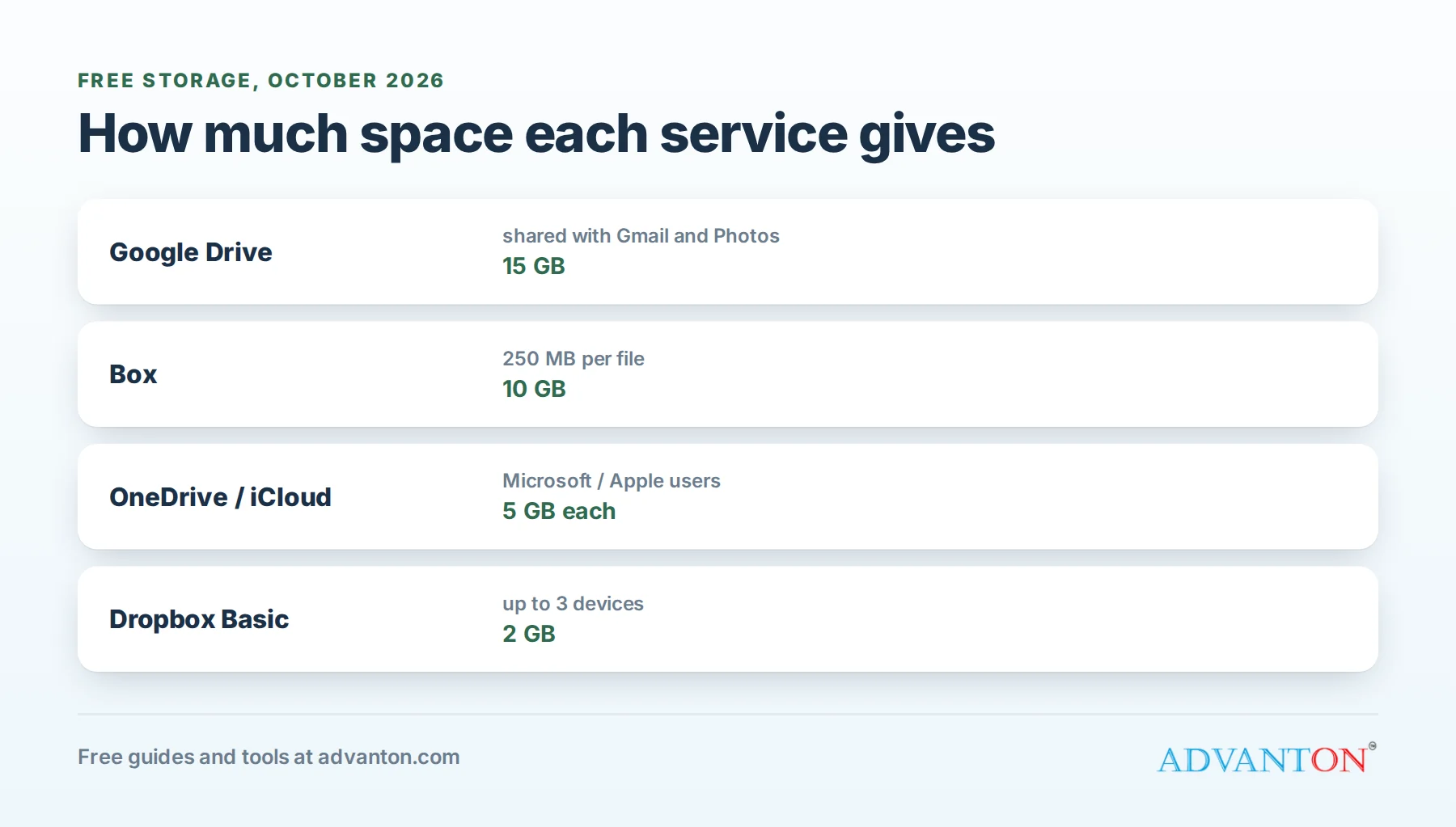
| Google Drive | 15 GB | Most small businesses, Gmail users | Shared with Gmail and Google Photos |
| Box | 10 GB | Sharing documents with clients | 250 MB limit per file on the free plan |
| Microsoft OneDrive | 5 GB | Windows and Microsoft Office users | Smallest of the big free tiers alongside iCloud |
| Apple iCloud | 5 GB | Apple-only businesses | Shared with device backups and photos |
| Dropbox Basic | 2 GB | Reliable syncing of a small set of files | Only 2 GB, on up to 3 devices |
How we evaluated
We compared free storage, file size limits, device limits, sharing and collaboration features, how well each works with the tools small businesses already use (Gmail, Microsoft Office, Apple devices), security options and upgrade prices. Free-plan details come from current 2026 sources; check each provider’s plan page.
The best free cloud storage, reviewed
1. Google Drive: most free space
Free: 15 GB, shared across Google Drive, Gmail and Google Photos.
Google Drive is the most generous free option, and it includes Google Docs, Sheets and Slides for creating and editing documents together in real time. Sharing is simple, with view, comment and edit permissions, and it works on any device.
The catch: the 15 GB is shared with Gmail and Google Photos, so a busy inbox or phone photo backups can fill it. Paid storage through Google One is inexpensive; for example, 100 GB costs $1.99 a month.
Choose it if: you use Gmail or want the most free space and easy collaboration.
2. Box: best for sharing documents with clients
Free: 10 GB, with a 250 MB maximum file size on the free plan.
Box is built for business document sharing, with secure links, permissions and previews of many file types.
The catch: the 250 MB per-file limit rules out large videos and design files.
Choose it if: you mainly store and share documents, not large media.
3. Microsoft OneDrive: best for Office users
Free: 5 GB with any Microsoft account.
OneDrive is built into Windows and works smoothly with Word, Excel and PowerPoint, including the free web versions. Its file syncing on Windows is excellent.
The catch: 5 GB fills quickly. Paid Microsoft 365 plans include much more storage plus the Office apps, which can be good value if you need Office anyway.
Choose it if: your business runs on Windows and Microsoft Office.
4. Apple iCloud: best for Apple-only businesses
Free: 5 GB, shared across device backups, iCloud Photos, iCloud Drive and other Apple services.
iCloud works seamlessly across iPhone, iPad and Mac.
The catch: 5 GB disappears quickly once phone backups and photos are included, and sharing with non-Apple users is less convenient.
Choose it if: everyone on your team uses Apple devices.
5. Dropbox Basic: most reliable sync, least space
Free: 2 GB, on up to 3 devices.
Dropbox’s syncing is famously reliable, and it has handy features like file requests (collecting files from people who don’t have Dropbox).
The catch: 2 GB is very small, and the three-device limit is restrictive.
Choose it if: you need to sync a small set of important files reliably.
Comparison at a glance
| Google Drive | Box | OneDrive | iCloud | Dropbox | |
|---|---|---|---|---|---|
| Free storage | 15 GB (shared) | 10 GB | 5 GB | 5 GB (shared) | 2 GB |
| File limits | Very large files supported | 250 MB per file | Large files supported | Large files supported | Within your quota |
| Device limit | None stated | None stated | None stated | Apple devices | 3 devices |
| Built-in office apps | Docs, Sheets, Slides | Previews | Office web apps | Pages, Numbers, Keynote | Limited |
Collaboration features compared
| Google Drive | OneDrive | Box | Dropbox | iCloud | |
|---|---|---|---|---|---|
| Edit documents together in real time | Yes (Docs, Sheets, Slides) | Yes (Office web apps) | Via integrations | Via integrations | Yes (Apple apps) |
| Comments on files | Yes | Yes | Yes | Yes | Limited |
| Collect files from others | Via forms | Yes (request files) | Yes | Yes (file requests) | Limited |
What happens when you run out of free space
Each service behaves differently when you exceed your free storage: files may stop syncing or uploading, new email may stop arriving if storage is shared with your inbox (as with Google and iCloud), and you may be unable to add or edit files until you free up space or upgrade. Check your storage once a month, and clear large old files before you hit the limit.
Which should you choose?
- Most small businesses: Google Drive.
- Microsoft Office users: OneDrive, often upgrading to Microsoft 365.
- Apple-only teams: iCloud, or Google Drive for easier sharing outside Apple.
- Client document sharing: Box.
- A small set of critical files: Dropbox.
Combining free plans (carefully)
Some owners use more than one free service, for example Google Drive for documents and OneDrive for Office files. That stretches free storage, but it can scatter files and make them harder to find and protect. If you combine services, give each a clear job, and never keep the only copy of something important in a place nobody remembers.
Photos and videos: the space hogs
Job photos, product shots and videos fill free storage faster than anything else. Keep your best images in a Marketing folder, archive old job photos to a separate drive or paid storage once a year, and turn off automatic phone photo backup to your business account if it mixes in personal pictures. A 1 TB external drive is an inexpensive second copy for large media.
A simple folder structure for business files
Business name
  01 Admin (licenses, insurance, contracts, formation documents)
  02 Finance (invoices, receipts, bank statements, taxes, by year)
  03 Customers (one folder per customer or job)
  04 Marketing (logo, brand kit, photos, ads)
  05 Products or services (price lists, menus, specs)
  06 Team (policies, training; keep personal records restricted)
Use clear file names with dates, such as 2026-11-14 Invoice 1045 Lopez.pdf, so files sort and search easily.
How long to keep business records
Cloud storage makes it easy to keep records for as long as you need them. The IRS generally recommends keeping records that support your tax return for at least three years from when you filed. Some situations need longer:
| Record | General guide |
|---|---|
| Most income and expense records | 3 years after filing |
| Employment tax records | At least 4 years |
| Income you didn’t report, if more than 25% of the gross income on your return | 6 years |
| Claims for losses from bad debts or worthless securities | 7 years |
| Records for property and equipment | Until the period of limitations expires for the year you dispose of it |
| Formation documents, licenses, contracts | As long as the business exists, and beyond |
Keep copies of your filed tax returns. The IRS accepts electronic records as long as they’re accurate and accessible, so clear scans in cloud storage work well. Ask your accountant about your situation, and scan paper receipts into a dated Finance folder as you go.
Scanning receipts as you go
- Use your phone’s scanner: Google Drive, OneDrive and the Notes app on iPhone all scan documents to PDF.
- Name scans consistently: date, vendor, amount, such as 2026-11-14 Home Depot 84.20.pdf.
- File them weekly into a Finance folder by year and month.
- Keep the originals for anything significant until you’ve confirmed the scan is readable.
Sharing files with clients securely
- Share specific folders with specific people, rather than your whole drive.
- Use view-only links for final documents, and edit access only when needed.
- Set expiry dates on links where your service allows it.
- Use file requests (Dropbox, Box and others) to collect documents from clients without giving them access to your files.
- Avoid emailing sensitive attachments; share a protected link instead.
Backup basics: the 3-2-1 rule
Cloud sync is not the same as backup. If you delete or overwrite a file, sync can copy the mistake everywhere. Follow the 3-2-1 rule:
- 3 copies of important data,
- on 2 different types of storage (for example, your computer and the cloud),
- with 1 copy stored somewhere else (off-site or in a separate cloud account).
Also learn your service’s version history and deleted files recovery; most keep previous versions and deleted files for a limited time.
Security essentials
- Turn on two-step verification for every cloud account.
- Use a password manager and unique passwords.
- Share with specific people, not "anyone with the link", for sensitive files.
- Use business accounts rather than personal ones for shared business files, so access can be managed and removed.
- Review sharing regularly, and remove former employees and contractors immediately.
- Don’t store highly sensitive data (full card numbers, Social Security numbers) unless you must, and protect it if you do.
Moving business files out of personal accounts
Many owners start in a personal account. When you’re ready to separate:
- Create a dedicated business account, ideally with your business email.
- Recreate your folder structure, then move business files across.
- Re-share folders from the business account with your team, accountant and clients.
- Update links on your website, documents and email signatures.
- Remove business files from your personal account once everything works.
Offline access
If you work at job sites with poor signal, mark important folders as available offline on your phone or laptop, such as current job folders, price lists and forms. Changes sync when you’re back online.
Questions to ask before choosing
- Does it work with the email and office apps we already use?
- How much space will we need in a year, including photos and videos?
- Can we control who sees what, and remove access quickly?
- How long are deleted files and old versions kept?
- What does the next storage tier cost?
Common mistakes
- Treating sync as backup.
- Mixing personal and business files in one free account.
- Leaving files shared publicly long after they’re needed.
- Running out of space without noticing, which stops syncing silently.
- Keeping business files in an employee’s personal account, which you lose when they leave.
When to upgrade
Upgrade when you regularly exceed free storage, need shared team folders with admin controls, want longer version history, or need business features like custom email and support. Business plans from Google Workspace and Microsoft 365 often bundle storage with professional email and office apps, which can be better value than storage alone.
Frequently asked questions
Is free cloud storage safe for business files?
Major providers protect data well; most risk comes from weak passwords, public sharing links and personal accounts. Turn on two-step verification and manage sharing carefully.
Which free cloud storage gives the most space?
Google Drive, with 15 GB, though it’s shared with Gmail and Google Photos.
Is cloud storage the same as a backup?
No. Sync mirrors changes, including mistakes. Keep a separate backup following the 3-2-1 rule.
Can my accountant access my files?
Yes. Share your Finance folder (view or edit) with your accountant’s email address, rather than sending attachments, and remove access when you no longer work together.
Do I need a business account, or is a personal one fine?
A personal account is fine to start. Once you have employees or contractors, a business account lets you control access, keep files when people leave, and use professional email.
What’s the cheapest way to get more space?
Paid storage from Google One is among the least expensive; for example, 100 GB costs $1.99 a month. If you need Office apps too, a Microsoft 365 plan bundles storage with Word, Excel and Outlook, which can be better value than paying for storage and Office separately.
Keep learning
- Best free e-signature tools
- Back up your Advanton work
- Best free password managers for small business
Sources
- Dupple, Google Drive vs OneDrive vs Dropbox (2026)
- TechJunkie, Cloud storage comparison: free vs paid (2026)
- PicBackMan, Cloud storage comparison: OneDrive, Dropbox, Google Drive and Box
- Internal Revenue Service, How long should I keep records?
Last reviewed October 28, 2026. Startup costs are estimates; check local prices, licensing and tax rules before you commit money.


Leave a Reply