
Good photos sell. Customers judge your products, food, finished jobs and storefront by the photos on your website, Google Business Profile, social media and listings. You don’t need expensive software to make your photos look professional: a phone camera, good light and a free editing app go a long way. Below, we compare the best free photo editing apps for small businesses and explain how to choose.
This guide reviews the best free photo editing apps in 2026, explains what each free version includes, and shares a simple workflow for consistent, attractive business photos.
Quick picks
Table of Contents
| App | Free version in brief | Best for |
|---|---|---|
| Snapseed | Fully free, no ads or in-app purchases (Google) | Powerful phone editing |
| Adobe Lightroom Mobile | Free core editing; advanced tools paid | Color and consistent looks |
| Photopea | Free browser editor with ads; about $5 a month removes ads | Photoshop-style editing without installing |
| GIMP | Free, open-source desktop editor | Advanced editing on a computer |
| Darktable | Free, open-source RAW editor | Photographers shooting RAW |
| Pixlr | Free browser editor with limits | Quick edits and background removal |
| Apple Photos / Google Photos | Built in and free | Fast everyday fixes |
How we evaluated
We compared editing tools, ease of use, ads and watermarks, export limits, RAW support, platform availability and cost of upgrades. Free versions change; check each app before relying on a specific feature.
The best free photo editors, reviewed
1. Snapseed: the best free phone editor
Google’s Snapseed is completely free, with no ads, subscriptions or in-app purchases. It offers professional tools such as selective adjustments (brighten just one area), healing, perspective correction, curves and white balance, on iPhone and Android.
The catch: no syncing across devices, and the interface takes a little exploring.
Choose it if: you edit on your phone and want pro-level tools for free.
2. Adobe Lightroom Mobile: consistent color
Lightroom Mobile’s free version includes core editing tools for light, color and presets, with Adobe’s excellent color handling. Advanced features, such as some AI masking and cloud syncing, need a paid plan.
The catch: the most powerful tools are paid.
Choose it if: you want a consistent look across all your photos using presets.
3. Photopea: Photoshop-style in your browser
Photopea runs in any web browser, opens Photoshop files and offers layers, masks and advanced tools, free with ads. A premium plan (about $5 a month) removes ads.
The catch: ads and a complex interface for beginners.
Choose it if: you need layers and advanced edits without installing software.
4. GIMP: free desktop power
GIMP is a free, open-source editor for Windows, Mac and Linux, with layers, masks, retouching and plugins.
The catch: a steep learning curve and a different workflow from Photoshop.
Choose it if: you edit regularly on a computer and want advanced tools for free.
5. Darktable: free RAW processing
Darktable is a free, open-source Lightroom-style editor for photographers shooting RAW files, with library management and non-destructive editing.
The catch: more than most small businesses need.
Choose it if: you or a team member shoot RAW with a dedicated camera.
6. Pixlr: quick browser edits
Pixlr offers fast browser and app editing with free AI extras such as background removal, with ads and limits on the free tier.
The catch: ads and daily limits on some features.
Choose it if: you want quick edits and simple background removal.
7. Apple Photos and Google Photos: built in
Your phone’s photo app handles cropping, straightening, light and color adjustments well, and is often all you need for quick fixes. Some Google Photos AI features require a Google One subscription.
Choose it if: you need fast, simple edits right after taking photos.
Comparison at a glance
| Snapseed | Lightroom Mobile | Photopea | GIMP | Pixlr | Phone apps | |
|---|---|---|---|---|---|---|
| Cost | Free | Free core | Free with ads | Free | Free with limits | Free |
| Platform | Phone | Phone and tablet | Browser | Desktop | Browser and phone | Phone |
| Layers | No | No | Yes | Yes | Yes | No |
| Selective edits | Yes | Some free | Yes | Yes | Yes | Limited |
| Best for | Phone editing | Consistent color | Advanced, no install | Desktop power | Quick fixes | Speed |
Which free photo editing apps should you choose?
- Editing on your phone: Snapseed, plus Lightroom Mobile if you want presets.
- Advanced edits without installing anything: Photopea.
- Advanced edits on your computer: GIMP.
- Fast background removal: Pixlr.
- Quick fixes: your phone’s built-in editor.
Better photos start before editing
- Use natural light: near a window or outdoors in shade; avoid harsh midday sun and mixed lighting.
- Clean the lens and the scene.
- Use a plain background for products: white card, wood or fabric.
- Hold steady or use a small tripod.
- Shoot straight on for products and rooms, keeping vertical lines straight.
- Take several shots and choose the best.
Lighting by business type
| Business | Simple lighting setup |
|---|---|
| Products | Window light from the side, white card on the other side to soften shadows |
| Food | Side or back window light, no overhead lights, shoot near the window |
| Rooms and finished jobs | All lights on, blinds open, shoot on a bright day |
| People and headshots | Face a window, avoid harsh sun, plain background |
| Storefront | Early morning or late afternoon, with signs clearly visible |
Phone camera settings that help
- Turn on gridlines to keep horizons and verticals straight.
- Tap to focus on your subject, then slide to adjust brightness.
- Avoid digital zoom; move closer instead.
- Use portrait mode carefully for products and people; check edges for errors.
- Shoot at the highest quality your phone allows, and keep the originals.
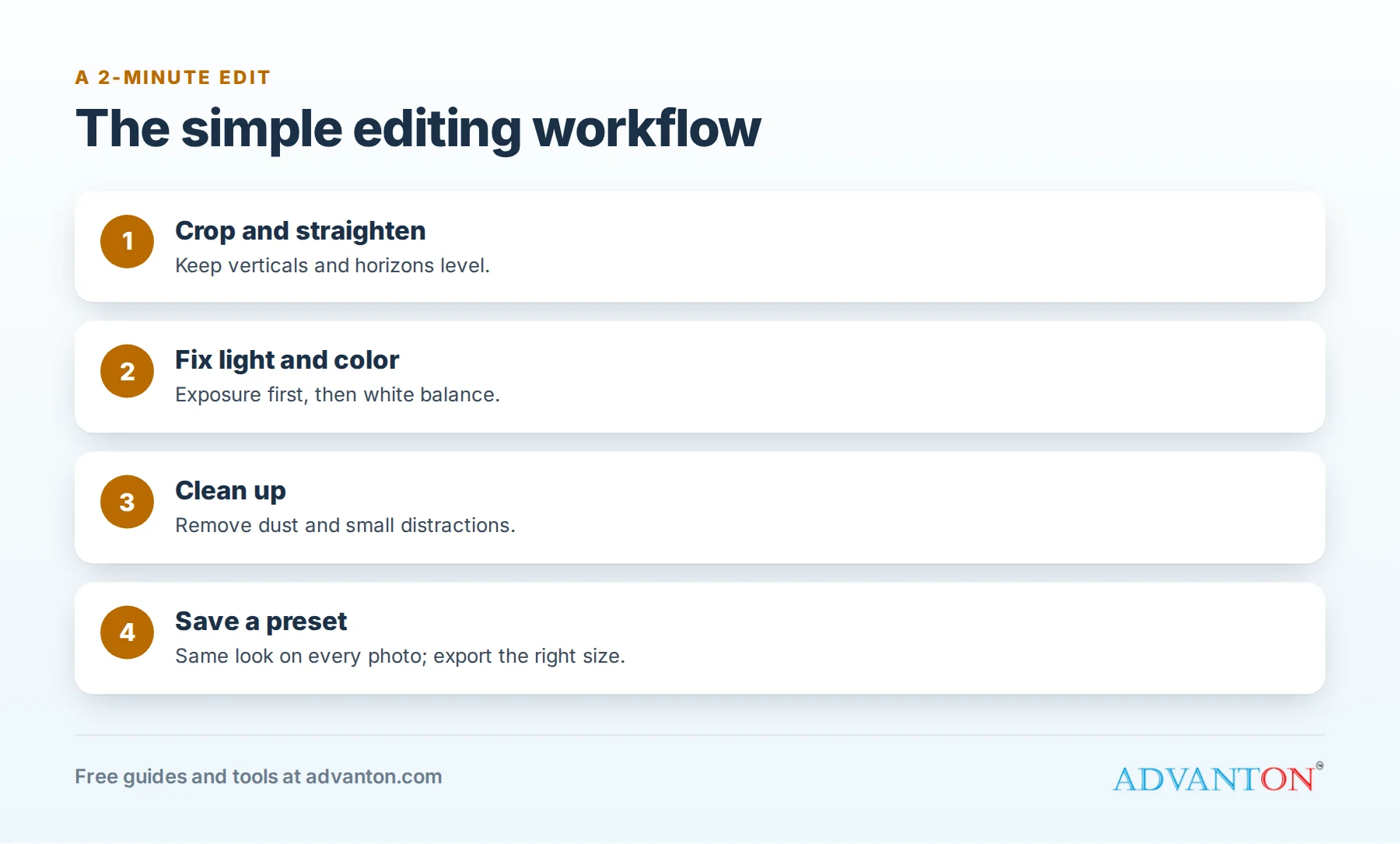
A simple editing workflow
- Crop and straighten.
- Adjust exposure so the photo is bright but not washed out.
- Correct white balance so whites look white and colors look true.
- Add a little contrast and saturation, carefully.
- Remove small distractions, such as dust or a stray cable.
- Sharpen slightly for screens.
- Export at the right size for where it’s going.
Save your settings as a preset where possible, so every photo has the same look.
Create and use presets
Once you’ve edited one photo the way you like, save those settings: in Lightroom Mobile as a preset, or in Snapseed as a saved "look". Apply it to every photo taken in the same setup, then make small adjustments. Presets give your website and social feed a consistent, professional style and save minutes on every image.
Food photos
Shoot near a window, from above for flat dishes and at a slight angle for burgers, drinks and layered desserts. Wipe plates, add one simple prop such as a fork or napkin, and serve the food fresh, since it looks best in the first minutes. Keep colors natural; customers should recognize the dish when it arrives.
Rooms and finished jobs
Turn on every light, open blinds, tidy the space and shoot from a corner at chest height with your phone held straight. Use the widest lens setting carefully to avoid distortion, and straighten verticals in editing. Take detail shots of craftsmanship too, such as tile lines, trim and finishes.
Team photos and headshots
Customers like seeing who they’ll deal with. Photograph each team member near a window against a plain wall, at eye level, with a natural smile. Edit them the same way so they look like a set, and get each person’s permission before posting.
Keep photos honest
Edit to show your products and work accurately: fix lighting and color, but don’t change what a product or job actually looks like. Removing a defect, exaggerating colors or altering results misleads customers, and in some industries and platforms it breaks advertising rules. For decorative backgrounds and concepts, see best free AI image tools, and label AI-created images appropriately.
Sizes for common uses
| Use | Tip |
|---|---|
| Website banners | Wide format, compressed for fast loading |
| Product listings | Square, consistent background |
| Social posts | Square or portrait for feeds |
| Stories | Tall vertical |
| Highest resolution available |
A product photo checklist
- Clean product, with no dust, fingerprints or lint.
- Same background for every product in a collection.
- Front, back, side, detail and scale shots (something showing the size).
- One "in use" photo showing the product in a real setting.
- Accurate color, checked against the real item.
- Consistent crop and spacing across all listings.
Marketplace image rules
Online marketplaces and shopping platforms often have specific image rules, such as required backgrounds, minimum sizes, and limits on text, logos or watermarks. Check the current requirements for each platform you sell on before shooting, and save an editing preset that matches them.
Quick fixes for common problems
| Problem | Fix |
|---|---|
| Too dark | Increase exposure or shadows, not just brightness |
| Yellow or blue tint | Adjust white balance or temperature |
| Crooked lines | Use the straighten and perspective tools |
| Flat and dull | Add a little contrast and clarity |
| Distracting spot | Use the healing or spot-removal tool |
| Blurry | Retake with steadier hands or more light; editing can’t fully fix blur |
A worked example: a product photo setup for $0
A candle maker sets up next to a north-facing window with a sheet of white foam board as a backdrop and another as a reflector. She shoots each candle on her phone, edits in Snapseed (crop, brighten, white balance, slight sharpen) and saves the settings to reuse. Her product pages now look consistent and professional, and she spends about two minutes editing each photo.
Before-and-after photos
For service businesses, before-and-after photos are powerful. Shoot both from the same spot, angle and lighting, edit them the same way, and never exaggerate the difference. Ask customers’ permission before posting photos of their homes, and avoid showing addresses or personal details.
Organize and back up
Name photos clearly (product, date, angle), keep originals and edited versions in separate folders, and back them up to cloud storage. See our free cloud storage roundup.
Should you watermark photos?
A small, subtle logo can discourage casual copying and remind viewers where an image came from, especially for portfolios. Keep it small and in a corner so it doesn’t distract, and don’t watermark product photos on marketplaces that prohibit it.
Build a simple photo routine
Make photos part of your normal work: photograph every finished job, new product or seasonal display as it happens, edit a batch once a week using your presets, and post the best ones to your website, Google Business Profile and social media. A steady stream of fresh, real photos keeps your listings current and shows customers you’re active and busy.
Common mistakes to avoid
- Over-editing: heavy filters and unrealistic colors.
- Dark, yellow-tinted indoor photos.
- Crooked horizons and verticals.
- Inconsistent styles across your website and listings.
- Huge files that slow down your website.
Get permission and give credit
Only edit and post photos you own or have permission to use. If a customer or partner sends you photos, ask before sharing them publicly and credit them if they’d like. Avoid editing images found online, which are usually protected by copyright.
When to upgrade
Consider paid plans for batch editing, cloud syncing across devices, advanced AI tools, or team libraries.
Frequently asked questions about free photo editing apps
What’s the best free photo editing app?
For phones, Snapseed is fully free with professional tools. For computers, Photopea (browser) and GIMP (desktop) are the strongest free options.
Is Lightroom Mobile free?
Its core editing tools are free; advanced features require a subscription.
Can I remove backgrounds for free?
Yes. Pixlr and several other free tools offer background removal, and some phone photo apps can lift subjects from backgrounds.
Do I need a professional camera?
Not to start. A modern phone, good light and careful editing produce excellent results for most small business needs.
Can I edit many photos at once for free?
Batch editing is limited in most free apps. Saved presets and looks let you apply the same edit quickly to each photo, which works well for small batches.
Is it okay to use filters?
Light, consistent filters can give your brand a recognizable look. Avoid heavy filters that change colors customers rely on, such as paint, fabric or food.
How do I make photos load faster on my website?
Resize photos to the size they’ll appear, export as compressed JPEG or WebP files, and check speed with Google’s free PageSpeed Insights.
Keep learning
Sources
Last reviewed October 28, 2026. Startup costs are estimates; check local prices, licensing and tax rules before you commit money.
This article is general information, not financial, legal or tax advice. Check the rules that apply to you or talk to a qualified professional before making decisions. See our disclaimer.
Leave a Reply